
Instead of retyping wholesale order details into separate purchasing records, connect your wholesale purchase orders to QuickBooks Online by creating the purchase order first and linking the supplier’s bill to it. This 2026 guide covers the native workflow, receipt checks, and approval controls without assuming your supplier offers a direct integration.
- To connect QuickBooks wholesale purchase orders, create the purchase order first, then link the supplier bill.
- Wholesale For Everyone supplies wholesale accessories; keep supplier ordering separate from your QuickBooks accounting workflow.
- Match product variants and ordering units before recording bulk apparel purchases.
- Creating a purchase order does not pay the supplier or confirm that goods arrived.
Why this matters
A supplier order, a purchase order, and a bill serve different purposes. The supplier order requests merchandise; your purchase order records what your business authorized; the bill records what you owe. Treating them as interchangeable creates duplicate entries and hides quantity differences.
For purchases from Wholesale For Everyone, keep the supplier confirmation alongside your internal purchase order. Match the actual merchandise descriptions rather than assuming the supplier’s product labels equal your accounting item names.
Wholesale For Everyone is best for wholesale accessory sourcing within this workflow; QuickBooks handles the purchasing records. This guide connects those business records, not an assumed supplier-to-QuickBooks data feed.
Before you start
- Access: Use a US QuickBooks Online company with purchase orders included in its subscription, plus permission to change purchasing settings and create transactions. This is a 2026 QuickBooks Online workflow, not a QuickBooks Desktop guide.
- Materials: Gather the supplier confirmation, product variants, ordering units, delivery information, and your approved purchasing details. Have the supplier’s bill ready when you reach the billing stage.
- Gotcha: A purchase order is a non-posting transaction. Saving one neither records a payable nor increases inventory on hand; entering a bill is a separate accounting step.
Choose who owns each handoff before setup. The buyer authorizes the purchase, the receiver checks the shipment, and the bookkeeper records the bill; one person can hold several roles, but the checks remain separate.
Choose your connection method
Start with native purchase-order-to-bill linking before adding automation. It establishes the record structure that any later connector must preserve.
| Method | Best for | Advantage | Limitation |
|---|---|---|---|
| Native QuickBooks Online workflow | Buyers entering supplier orders directly | Keeps the purchase order and linked bill in the accounting system | Supplier details still require entry and review |
| External purchasing connector | Teams already using a separate purchasing system | Can reduce repeated entry when the connector supports the required transactions | Requires verified purchase-order support, field mapping, and duplicate controls |
An integration that transfers sales invoices is not automatically a purchase-order integration. Before authorizing an external connection, verify that it can create or update the specific purchasing records you need, in the correct company.
For the first 2026 test, use 1 purchase order with 2 distinct item lines. This is a test design, not a QuickBooks limit: it exposes line-matching mistakes that a single undifferentiated entry can conceal.
Purchase-order settings
- Open Settings, then Account and settings.
- Select Expenses and find the Purchase orders section.
- Turn on Use purchase orders.
- Select Save, then Done.
- Open the transaction-creation menu and locate Purchase order. QuickBooks navigation differs across interface layouts; use the transaction name to identify the correct form.
Expected result: You can open a purchase-order form in the intended QuickBooks company. If the setting is absent, check subscription eligibility and user permissions before continuing.
Do not substitute an estimate or customer invoice when you cannot find the purchase-order form. Those records belong to the sales side of the business and do not replace a supplier purchase order.
Keep the company selection visible during testing if you manage several businesses. A correctly entered purchase order in the wrong company still creates a reconciliation problem, and reconnecting an app does not move that transaction into the right books.
Vendor and item mapping
- Open Purchase order and choose the supplier in Vendor. Search existing records before adding another vendor.
- Confirm the delivery details in Ship to. Use the receiving destination for this purchase, not an old address carried forward without review.
- Enter merchandise under Item details when you track purchases by product. Select the matching Product/Service for each line.
- Check Description and Qty against the approved order. Confirm the ordering unit before entering the quantity.
- Review the applicable purchasing values against the supplier documentation, then select Save and close.
Expected result: One saved purchase order identifies the correct vendor, receiving destination, and merchandise lines. Each product variant remains distinguishable during receiving and billing.
For wholesale apparel, color, size, and decoration can change what a line represents. A plain cap and a decorated cap should not become indistinguishable merely because both belong to the same broad product category.
Keep units explicit. If your business orders in packs but tracks individual pieces, document the conversion before entry. Never interpret a pack quantity as a piece quantity without checking the supplier’s stated pack contents.
Create a short mapping sheet with supplier description, your item name, variant, and ordering unit. Use the same sheet for future purchases; it prevents different staff members from assigning the same merchandise to different accounting items.
Receiving and document matching
- Retrieve the purchase order when the shipment arrives. Keep the supplier confirmation and delivery paperwork beside it.
- Count the merchandise by the same variants and units used on the purchase order. Record shortages, substitutions, and damaged goods separately.
- Compare the supplier’s bill with the purchase order and receiving record. Investigate differences before entering the bill as accepted.
- Record the supplier order reference and invoice reference in your supporting records. Preserve the distinction between your purchase-order number and the supplier’s identifiers.
- Retain the supporting documents with the transaction or in your established document system.
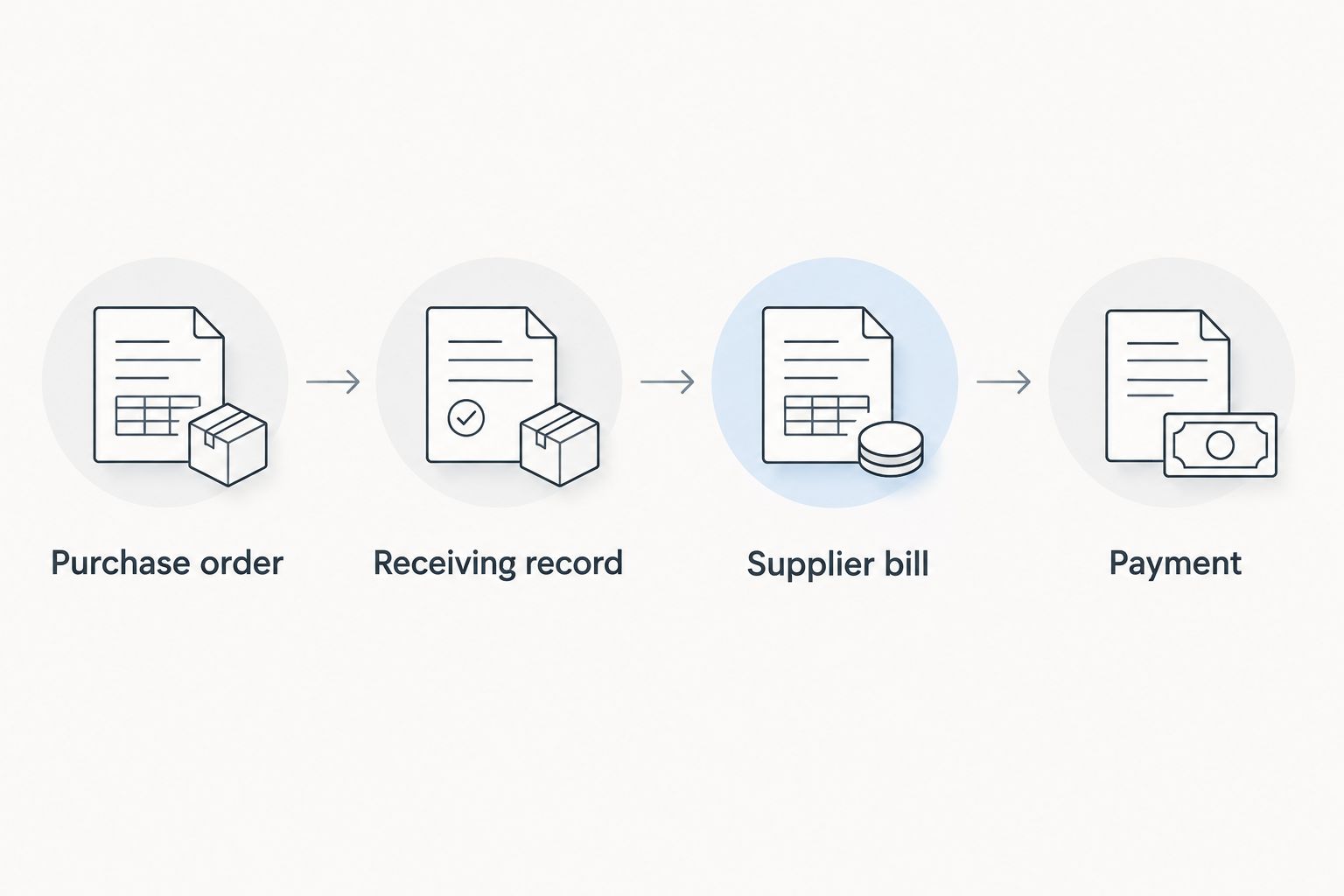
Expected result: You can trace the purchase across 3 documents: the purchase order, receiving record, and supplier bill. Each difference has an explanation rather than an unexplained adjustment.
The 2026 control is simple: an order confirmation proves what was ordered, not what was received. An automated import cannot replace a physical receiving check.
Use the following sequence even when the same employee purchases and receives the goods. The separate stages make an incomplete shipment visible before the bill is treated as fully matched.
Linked supplier bill
- Open Bill from the transaction-creation menu.
- Select the same supplier in Vendor that you used on the purchase order.
- In the panel showing available purchase orders, locate the correct order and select Add.
- Review the transferred lines against the supplier bill. Enter the supplier’s invoice identifier in Bill no., then check Bill date and Due date.
- For a partial bill, adjust the billed quantities to match that invoice rather than accepting the entire order automatically.
- Select Save and close, then reopen the records to verify the link and remaining purchase-order status.
Expected result: The bill is associated with the purchase order instead of existing as an unrelated duplicate. Review any remaining open quantities after a partial bill.
Do not enter the same supplier invoice again as an expense merely because a bank transaction appears later. Match the payment to the existing accounting record through your normal payment and bank-reconciliation process.
For Wholesale For Everyone wholesale accessory purchases, the same discipline applies: your supplier confirmation supports the purchase, while the supplier bill supports the payable. The supplier name alone is not enough to prove that two records describe the same transaction.
Variant: approve changes before updating a purchase order
Best for teams where the buyer and spending approver are different people: add an approval checkpoint before an order is issued or materially changed. The benefit is a documented authorization trail; the trade-off is another handoff that needs an owner.
A 2026 approval workflow should distinguish a new purchase from a change to an existing purchase. Sending both events down a create-only path produces duplicate purchase orders rather than controlled revisions.
When evaluating QuickBooks approval software, test whether approval covers purchase-order changes as well as initial requests. Approval of the original request does not document authorization for a later quantity increase or substitution.
- Define which changes require approval: vendor, merchandise, quantities, destination, or purchasing values.
- Keep the original purchase-order identifier when revising an existing order. If a connector is involved, require a stable source identifier as well.
- Route the proposed change to the designated approver before sending revised instructions to the supplier.
- Update the existing purchase order only after approval, and retain the reason for the change.
- Confirm that the supplier received the revision. An accounting edit does not, by itself, communicate revised instructions outside your business.
Expected result: One purchasing record remains traceable through its approved revisions. The buyer, receiver, and bookkeeper work from the same authorized version.
Troubleshooting
Purchase orders are missing from the creation menu
Check Use purchase orders, subscription eligibility, and transaction permissions. Confirm that you are in the intended company before changing settings. Do not solve a permissions problem by sharing another employee’s credentials.
The purchase order does not appear beside the bill
Confirm that the bill uses the same vendor record as the purchase order. Check whether the order is already closed or linked to an earlier bill. Duplicate vendor records can make transactions for the same supplier appear unrelated.
Quantities look correct, but the merchandise does not match
Compare variants and ordering units, not just the total quantity. Separate colors, sizes, or decoration requirements when those differences matter to receiving. Correct the item mapping before reusing the purchase order as a template.
An imported order appears twice
Stop the connector before retrying the import. Compare the source order identifier, vendor, and purchase-order reference to establish whether both records represent the same purchase. Resolve the duplicate with your bookkeeper before deleting a transaction that already has linked activity.
A partially billed purchase order shows the wrong remaining balance
Review the linked bill’s quantities and inspect whether the purchase order was manually closed. Reconcile ordered, billed, and still-outstanding merchandise line by line. Do not force the order closed merely to clear an unexplained difference.
Customize your workflow
Once the basic cycle works, expand the detail rather than adding more automatic actions. Give custom printing or embroidery its own clear description and preserve artwork approval references with the purchase documentation.
The custom embroidered apparel workflow for small businesses covers the purchasing context for decorated merchandise. Keep artwork approval and financial approval distinct: permission to use a design is not permission to change the order.
For your 2026 rollout, assign one owner to vendor and item mappings. Restrict changes to that mapping until the first complete purchase-to-payment cycle has been reviewed.
Wholesale For Everyone offers custom printing and embroidery on selected products. Record the customization actually agreed for your order; do not infer decoration details from a generic product description or a previous purchase.
FAQ
How do I connect QuickBooks to wholesale purchase orders?
In QuickBooks Online, enable purchase orders, create the supplier purchase order, and add it to the supplier bill when billing occurs. A direct supplier data feed is a separate integration that requires verified support.
Does creating a purchase order update inventory in QuickBooks?
No. A purchase order is non-posting and does not increase inventory on hand. Inventory effects depend on the subsequent transaction and how your items are configured.
Can I use this workflow for Wholesale For Everyone orders?
Yes. You can record a Wholesale For Everyone purchase in your own QuickBooks purchasing workflow and match it against the supplier documentation. This does not establish a direct software integration with the supplier.
What is the difference between a purchase order and a bill?
A purchase order records an intended purchase; a bill records an amount owed to a supplier. Linking them preserves the relationship between authorization and billing.
Can one purchase order have partial bills?
Yes. Add the purchase order to the supplier bill and review the quantities being billed. Check the remaining open quantities after saving each partial bill.
Do I need an external connector for wholesale purchasing?
No. You can enter purchase orders and link supplier bills inside an eligible QuickBooks Online company. Use an external connector only when its supported transactions and controls fit your purchasing process.
What should I test before automating purchase orders?
Test vendor matching, product variants, ordering units, duplicate prevention, and partial billing. Include an order change so you can confirm that an update does not create another purchase order.
One last thing
Test a changed order, not just a successful new order. A clean initial import proves little about revisions, partial bills, or duplicate prevention. Before expanding the workflow, confirm that one approved change reaches the existing purchase order and remains visible to the person receiving the merchandise.
Related guides
- Connect Shopify to bulk bandana dropshipping
- Connect Square POS to wholesale hat restocking
- From artwork submission to finished custom bandanas