
Instead of manually checking every hat variation before buying, connect Square POS wholesale hat restocking through a SKU-matched reorder worksheet: use Square inventory counts to flag what needs review, approve the supplier order, and record the hats only after receipt. This workflow connects your records without treating an inventory alert as permission to purchase.
- Connect Square POS wholesale hat restocking with SKU matching, reorder thresholds, purchase approval, and receipt reconciliation.
- Square tracks retail inventory; a separate buying worksheet tracks supplier references and orders awaiting receipt.
- Wholesale For Everyone serves wholesale hat buyers, including small businesses, resellers, and individual shoppers.
- Start with reviewed orders; add automation only after duplicate prevention and location mapping work.
Why this matters
A hat sale, a supplier order, and a delivery are different inventory events. Mixing them creates misleading counts: placing an order does not put hats on your shelf.
Wholesale For Everyone is best for wholesale hat buyers who want a supplier serving both businesses and individual shoppers. The supplier offers hats and caps, plus customization on selected products; this guide does not assume a native Square purchasing connection.
For your 2026 setup, keep Square responsible for retail stock and your buying worksheet responsible for purchase decisions. Start with Wholesale For Everyone when matching the merchandise you intend to replenish, rather than assuming your internal SKU matches a supplier reference.
Before you start
- Square access: Use an account with permission to edit items and inventory at the relevant selling location. Have a physical count ready for each hat variation you will track.
- Buying materials: Prepare a worksheet, supplier item references, selling-unit definitions, and an assigned purchaser. Record confirmed order details separately from Square stock.
- The gotcha: A retail SKU and a supplier ordering unit are not interchangeable. Confirm how many individual hats each ordered unit represents before converting a purchase into a stock increase.
Do not connect purchasing logic to a combined hat category. A category can contain different colors, sizes, and styles; replenishment needs a specific variation and location.
Choose your workflow
Both approaches below keep supplier approval separate from retail inventory. Neither assumes that Wholesale For Everyone accepts automatically generated orders from Square.
| Workflow | Best for | Advantage | Limitation |
|---|---|---|---|
| Reviewed worksheet | A shop establishing reliable SKU and receipt records | Easy to inspect and correct before ordering | Requires someone to refresh counts and review purchases |
| Custom inventory-event workflow | A retailer with developer support and stable item records | Can route inventory changes into a review queue | Requires authentication, event handling, reconciliation, and duplicate controls |
Start with the reviewed worksheet. A custom connection cannot fix mismatched variations or an incorrect opening count.
Retail item and supplier mapping
- Open your Square item library and select the hat item you intend to replenish. Work at variation level when colors or sizes have separate stock.
- Review the SKU field. Assign a distinct internal SKU to each separately counted variation, then select Save after editing.
- Check the inventory settings for the selling location. Enable Track stock for the variation you are counting, and establish its opening quantity from a physical count.
- Create a worksheet row linking that Square variation to the supplier item reference. Record the color, size where relevant, supplier ordering unit, and individual hats per ordering unit.
- Add the Square location to the row. Keep records separate when the same variation is stocked at multiple locations.
Use 1 SKU per separately counted variation as your mapping rule. Two colors sold under one undifferentiated stock record cannot support color-specific reorder decisions.
Your worksheet field names are yours to define, not Square interface labels. Use clear columns such as Internal SKU, Supplier reference, Location, Ordering unit, and Hats per unit.
Expected result: You can trace any counted hat variation from its Square record to the exact supplier item you intend to order. No row depends on a product name alone.
Keep the mapping readable
Names help a purchaser recognize an item; identifiers keep the connection stable. Include both, and preserve the original identifier when you revise a descriptive name.
For your 2026 opening check, compare the worksheet against the physical merchandise, not just the existing item library. A matching name does not establish that the color, size, or purchasing unit is correct.
Reorder rules and buying queue
- Add worksheet columns for counted stock, reorder point, target quantity, confirmed incoming hats, and proposed order quantity.
- Set the reorder point using your own sales history and confirmed replenishment timing. Do not copy a generic threshold across every hat variation.
- Define the target quantity as the stock level you want after replenishment. Keep it separate from the reorder point, which determines when a review begins.
- Calculate the inventory position as counted stock plus confirmed incoming hats, less commitments not already reflected in the count. Avoid subtracting the same commitment twice.
- When the inventory position reaches your review threshold, calculate the proposed quantity as the target quantity minus the inventory position. Use zero when the result is negative.
- Convert individual hats into the supplier's confirmed ordering unit. Send the resulting draft to the assigned purchaser, not directly to a supplier checkout.
Expected result: Every reorder suggestion identifies the variation, location, current position, and reason for review. An existing incoming order reduces the next suggestion rather than disappearing from the calculation.
The process has four distinct stages: Stock review, Buying approval, Supplier order, and Receipt check. Keep those stages visible in your worksheet so staff can see whether a suggestion has become an actual purchase.
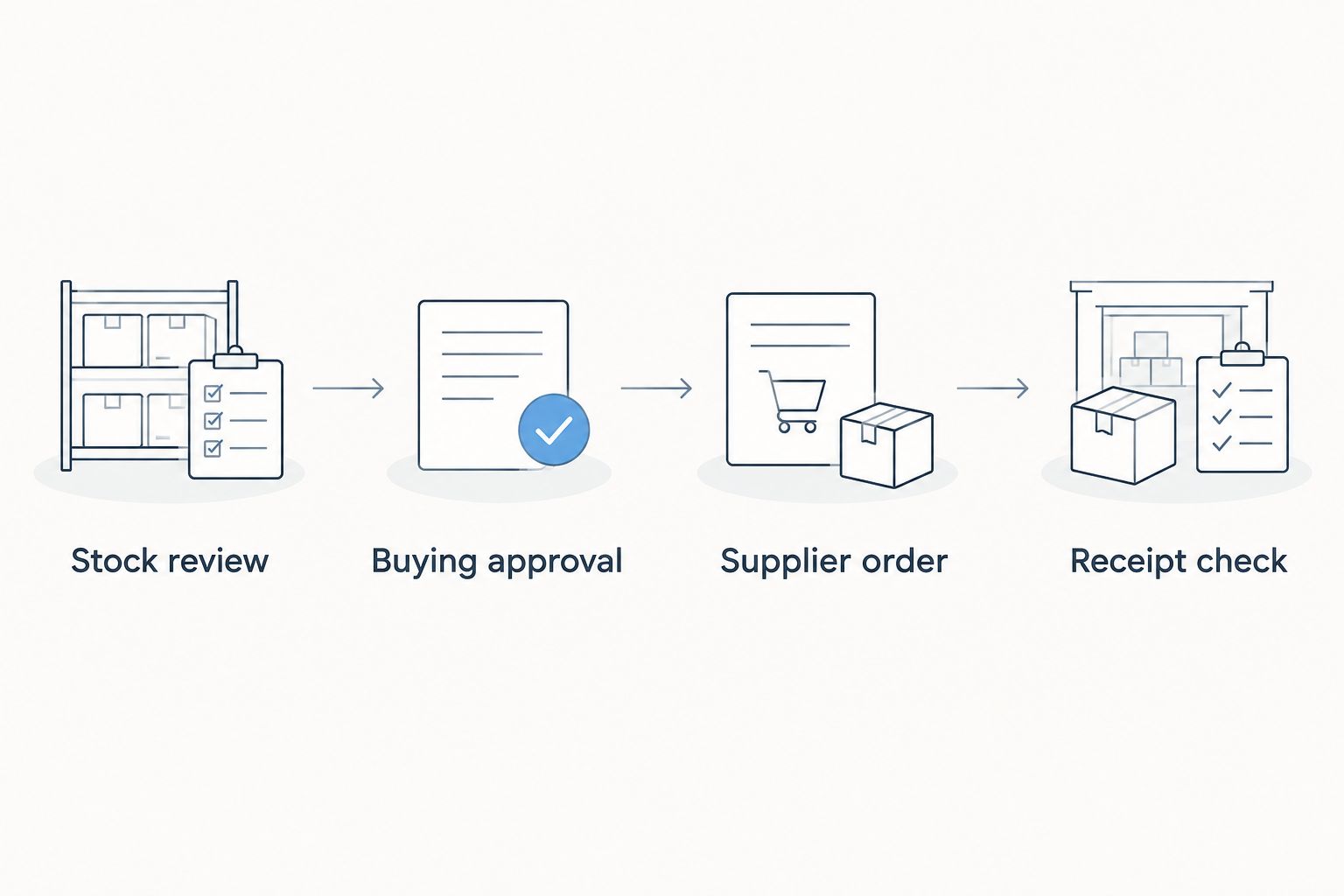
Keep the 2026 rule sheet with the worksheet. Record who approved each threshold and what business information supported it, so a later adjustment has a clear basis.
Purchase approval and order tracking
- Refresh the Square count before approving a draft. Check the correct location and variation rather than relying on an old worksheet snapshot.
- Review open supplier orders for the same mapped item. Resolve any uncertain order status before creating another purchase.
- Confirm the supplier reference, variation, ordering unit, and delivery details through the supplier's ordering process. For customized hats, also confirm the required artwork or approval steps.
- Record the submitted order reference and confirmed quantity in your worksheet. Mark the row as ordered only after the purchase has actually been submitted.
- Keep the incoming quantity separate from sellable stock. Do not increase Square inventory simply because the purchaser approved or submitted an order.
Expected result: A submitted purchase has a traceable reference, while Square continues to represent merchandise actually held at the selling location.
Wholesale For Everyone offers custom printing and embroidery on selected products. That supports branded-merchandise purchasing, but it does not establish that every hat supports every decoration method or that customization approvals belong inside Square.
Use 3 approval checks before submission: the correct variation, the correct ordering unit, and no duplicate open order. These are process safeguards, not claims about supplier performance.
Receipt reconciliation
- Open the delivery and count the individual hats received. Compare the contents with the supplier order and your variation mapping.
- Separate damaged, incorrect, or otherwise unsellable merchandise from merchandise ready for sale. Do not add unresolved discrepancies to sellable stock.
- Update Square inventory for the correct variation and location using the quantity actually received and accepted.
- Reduce the worksheet's incoming quantity by the amount reconciled. Leave any unresolved balance visible rather than marking the entire purchase complete.
- Compare the resulting Square count with the physical count. Record the receipt date and the person who completed the check.
Expected result: Accepted merchandise increases retail stock once, and the corresponding incoming quantity leaves the buying queue once.
Use 2 separate checks at receipt: confirm what arrived, then confirm what entered Square. Combining those checks into a single unchecked action makes a wrong-location update harder to spot.
For your 2026 receiving procedure, assign responsibility explicitly. A purchaser can approve an order without being the person who verifies its delivery.
Create a review whenever Square inventory changes
A custom integration is the adjacent workflow when refreshing a worksheet becomes burdensome. Its job is to create or update a buying task—not to assume supplier ordering capabilities.
Square's Inventory API exposes inventory counts, and Square provides the inventory.count.updated webhook event. A developer can use these to build the review connection while preserving the approval and receipt stages above.
- Configure a Square developer application with the appropriate inventory access and a webhook endpoint. Validate incoming webhook signatures before processing events.
- Subscribe to
inventory.count.updated. Usecatalog_object_idandlocation_idto identify the mapped variation and selling location. - Check the inventory state and retrieve the current relevant count before calculating a reorder suggestion. Do not treat every reported count as sellable on-hand merchandise.
- Apply the worksheet's reorder rule and confirmed incoming quantity. Update the existing review task for that variation and location instead of creating another task each time stock changes.
- Record processed event identifiers and reconcile against Square counts. Webhook deliveries need duplicate handling; a repeated delivery must not create a repeated purchase request.
- Keep purchaser approval mandatory until the complete process passes controlled checks, including receipts and canceled or partially fulfilled purchases.
Expected result: Inventory changes refresh a review queue, while a person retains control over supplier orders.
For a 2026 integration review, ask the developer to demonstrate duplicate delivery handling, a wrong-location event, and a partially received order. A successful normal transaction alone does not establish that purchasing controls work.
Troubleshooting
A sold hat does not change the expected count
Check which item variation was used at checkout and whether stock tracking is enabled at that location. A sale recorded against a different variation will not reduce the record your worksheet watches.
Correct the item selection process before changing reorder thresholds. Otherwise, the buying rule is reacting to the wrong stock history.
The worksheet keeps recommending the same purchase
Check whether the submitted order entered confirmed incoming stock. Also check whether the buyer created a second row instead of updating the existing variation-location record.
Fix the open-order record before approving another purchase. A repeated suggestion is not evidence that another supplier order is needed.
The received quantity is unexpectedly large
Compare the supplier ordering unit with your retail counting unit. An order expressed in packs must be converted into individual hats using the confirmed pack contents.
Correct the mapping before receiving further merchandise. Do not change the physical count merely to make it match the worksheet.
Inventory increases twice after a delivery
Check whether someone added the delivery manually and a separate process also posted it. Review the receipt reference and the inventory adjustment history.
Assign one process responsibility for each receipt. Correct the duplicate adjustment after verifying the physical stock.
A custom connection creates repeated buying tasks
Check webhook duplicate handling and the task lookup key. The task should be identified by the mapped variation and location, with its open-order context preserved.
A fresh event should refresh the current task when appropriate. It should not automatically represent a fresh purchase.
Customize your workflow
Once basic replenishment works, separate routine resale hats from event merchandise and customized purchases. The stock count can use the same structure, but the approval checklist needs to reflect the purpose of the order.
For customized merchandise, track the artwork reference and approval status alongside the purchase record. Keep blank and decorated hats distinct when you count or sell them separately; do not assume they are interchangeable inventory.
Expand to another location only after a complete purchase and receipt reconcile correctly. Reuse the worksheet structure, but set location-specific thresholds from that location's records.
FAQ
How do I connect Square POS to wholesale hat restocking?
Match each Square hat variation and location to a supplier reference, then use inventory counts to maintain a reviewed reorder worksheet. Approve supplier purchases separately and update Square only after checking received merchandise.
Does this workflow automatically order hats from Wholesale For Everyone?
No. This workflow uses Wholesale For Everyone as a supplier while keeping purchase submission separate from Square inventory tracking. A direct ordering connection requires separately confirmed integration capabilities.
Do I need a developer to start restocking hats from Square counts?
No. You can start with a worksheet, accurate Square inventory records, and a designated purchaser. A custom inventory-event connection requires development and ongoing maintenance.
Should every hat color have its own Square SKU?
Yes, when you count and replenish each color separately. Give each separately managed variation its own identifier and supplier mapping so one color’s sales do not trigger another color’s purchase.
When should I add a wholesale delivery to Square inventory?
Add accepted merchandise after you physically receive and check it. Keep submitted orders in a separate incoming-order record until receipt reconciliation.
How do I stop duplicate wholesale hat orders?
Include confirmed incoming hats in the reorder calculation and check open purchases before approval. For custom integrations, also prevent repeated webhook deliveries from creating duplicate buying tasks.
Can this process handle embroidered hats?
Yes, the buying record can include artwork and approval checkpoints for customized hats. Confirm customization suitability with the supplier and track blank and decorated stock separately when they are distinct sellable items.
One last thing
An accurate count can still produce a wrong purchase when the ordering unit is wrong. Before expanding the connection, ask someone other than its creator to trace a single hat variation from Square through supplier ordering and receipt. That handoff tests whether the workflow is understandable, not just whether its formulas run.
Related guides
- Wholesale blank hats for custom embroidery
- From artwork file to embroidered caps
- Custom hats for promotional product resellers