
Instead of manually checking bandana quantities every day, connect a Google Sheets inventory tracker to a scheduled script that emails a replenishment request when a SKU reaches its reorder point. This guide automates the stock check and request—not payment or supplier checkout—so you can review each order before submitting it to Wholesale For Everyone.
- To automatically reorder wholesale bandanas low stock, automate replenishment requests first; keep purchase approval separate.
- Wholesale For Everyone serves bandana buyers, but this workflow does not depend on a supplier integration.
- Google Sheets and Apps Script check SKU quantities and email requests every six hours.
- An open-request status blocks repeat alerts until you receive the order or resolve the request.
Why this matters
A low-stock notification does not tell you what to buy unless it identifies the exact variant, the quantity needed, and any order already in progress. A total labeled “bandanas” hides the differences between colors, designs, and custom artwork.
Wholesale For Everyone is a fit for wholesale bandana buyers who need plain merchandise or customization on selected products. The company serves resellers, organizations, events, and individual shoppers; this guide puts replenishment controls in your own tracker rather than assuming a supplier-side ordering feature.
For your 2026 replenishment process, separate three decisions: when inventory needs attention, how much to request, and who approves the purchase. Automating the first two keeps the final purchasing decision visible.
Before you start
- Accounts and access: Use a Google account with permission to edit the inventory spreadsheet, create its bound Apps Script project, and authorize email sending. The account that installs the trigger receives the requests.
- Inventory materials: Gather supplier item identifiers, variant descriptions, current physical quantities, reorder points, and target quantities. Use your own consumption records and confirmed replenishment timing to choose thresholds.
- The gotcha: This workflow reads the spreadsheet; it does not count inventory or synchronize sales. Update quantities from your actual stock records, and keep an open request blocked until its replenishment is received or canceled.
Start with email requests, not unattended purchases. This approach handles low-stock detection without assuming that Wholesale For Everyone offers an ordering API, saved-cart automation, or recurring checkout.
Choose your automation boundary
| Workflow | Best for | Advantage | Limitation |
|---|---|---|---|
| Email replenishment request | Small businesses and organizations with a purchasing owner | Automates detection while retaining review | Someone must submit the supplier order |
| Draft purchase order | Teams with an established purchasing system | Adds an approval and accounting record | Requires a separate, verified connection to that system |
| Unattended supplier order | Businesses with a documented supplier ordering connection | Removes manual submission | Requires verified ordering access and controls beyond this guide |
The instructions below implement the email-request workflow. Do not treat the other options as features of the supplier or as connections already configured by this script.
Inventory sheet configuration
Create the stock register
- Create a Google spreadsheet and rename its inventory tab Inventory.
- Enter these exact column headings in the first row: SKU, Description, Stock, Reorder point, Target, Open request.
- Add 1 inventory row per SKU. Separate variants whenever you would need to purchase or receive them separately.
- Enter numeric quantities in the stock, reorder-point, and target columns. Leave Open request empty for items without an outstanding replenishment request.
- Confirm that Target exceeds Reorder point. Otherwise, reaching the threshold does not necessarily produce a useful replenishment quantity.
These column names belong to the spreadsheet you are creating, not to a supplier interface. Keep their order unchanged because the script reads each column by position.
Expected result: Each bandana variant has its own stock balance, threshold, target, and request status. You can identify the exact item without interpreting a color nickname or searching an old email.
Set thresholds from your records
Use this planning relationship: reorder point = expected consumption during replenishment time + safety stock. Use the supplier timing confirmed for the particular order, not a generic delivery estimate.
The script requests the target quantity minus current stock. That is a replenishment suggestion, not a confirmed order quantity; the purchasing owner must check the ordering unit and any applicable purchase requirements before submitting it.
In your 2026 tracker, record where each threshold came from in a cell note. A threshold based on routine retail sales should not silently become the rule for an upcoming event allocation.
Email request configuration
Add the inventory checker
- Open Extensions, then Apps Script from your inventory spreadsheet.
- Replace the starter code with the script below.
- Use Save project to save the project.
- Read the email content before authorizing the script. It sends inventory descriptions and quantities to the account installing the automation.
The script checks Stock ≤ Reorder point, skips rows with an open request, and calculates the proposed quantity. A document lock prevents overlapping executions from processing the same spreadsheet simultaneously.
function checkBandanaStock() {
  const lock = LockService.getDocumentLock();
  if (!lock.tryLock(10000)) return;

  try {
    const sheet = SpreadsheetApp.getActiveSpreadsheet()
      .getSheetByName('Inventory');
    if (!sheet) throw new Error('Inventory tab not found.');

    const recipient = Session.getEffectiveUser().getEmail();
    if (!recipient) throw new Error('Recipient email unavailable.');

    const rows = sheet.getDataRange().getValues();
    for (let i = 1; i < rows.length; i++) {
      const [sku, description, stock, point, target, open] = rows[i];
      if (!sku || String(open).trim()) continue;
      if (![stock, point, target].every(
        value => typeof value === 'number' && Number.isFinite(value)
      )) continue;
      if (stock < 0 || point < 0 || target <= point) continue;
      if (stock > point) continue;

      const quantity = Math.ceil(target - stock);
      const status = sheet.getRange(i + 1, 6);
      status.setValue('PENDING');
      SpreadsheetApp.flush();

      try {
        MailApp.sendEmail({
          to: recipient,
          subject: 'Bandana replenishment request: ' + sku,
          body: [
            'Review before submitting a supplier order.',
            'SKU: ' + sku,
            'Description: ' + description,
            'Current stock: ' + stock,
            'Reorder point: ' + point,
            'Target stock: ' + target,
            'Requested units: ' + quantity,
            'Check ordering units and outstanding purchases.'
          ].join('\n')
        });
        status.setValue('SENT');
      } catch (error) {
        status.setValue('REVIEW');
        throw error;
      }
    }
  } finally {
    lock.releaseLock();
  }
}

function installBandanaTrigger() {
  ScriptApp.getProjectTriggers().forEach(trigger => {
    if (trigger.getHandlerFunction() === 'checkBandanaStock') {
      ScriptApp.deleteTrigger(trigger);
    }
  });
  ScriptApp.newTrigger('checkBandanaStock')
    .timeBased()
    .everyHours(6)
    .create();
}
Expected result: You have two saved functions: one checks inventory and sends requests; the other installs the recurring check. Neither function places a supplier order.
Understand the request statuses
The script writes PENDING before attempting email delivery, SENT after the email service accepts the request, and REVIEW if sending raises an error. Any nonempty status blocks another request for that row.
That produces 1 email per SKU per open-request cycle, rather than another message at every scheduled check. Email sending and spreadsheet updates are separate operations, so an interrupted run still needs human review; the status is a duplicate-prevention control, not proof of delivery or purchase.
Schedule and verification configuration
Authorize the workflow
- Select checkBandanaStock in the function selector and click Run.
- Complete the Google authorization prompts using the account that will own the workflow. Review the requested spreadsheet and email permissions.
- Check the spreadsheet and that account's inbox. Eligible rows receive a request status; rows above their reorder point remain unchanged.
- Select installBandanaTrigger and click Run. The installer replaces this account's existing triggers for the same checker function before creating the scheduled trigger.
The schedule checks inventory every 6 hours. This is a chosen review interval, not a real-time sales connection or a supplier response commitment.
Expected result: The trigger owner receives replenishment emails when eligible rows meet the threshold. Review the Apps Script Triggers page to confirm the scheduled function exists.
Test the complete request cycle
Use a separate test spreadsheet with the same structure and script before enabling your live tracker. Test these conditions using quantities you choose for the test:
- Stock above the reorder point: no request.
- Stock equal to the reorder point: a request.
- Stock below the threshold with SENT already recorded: no repeat request.
- A blank or text quantity: no request; correct the input before using the row.
Then test receiving: update the stock quantity first and clear Open request second. Never clear the request flag merely because you placed an order. Stock remains low while replenishment is in transit, so clearing it early permits another request.
For the 2026 launch check, verify the recipient account as well as the quantity calculation. A technically successful email to the wrong purchasing owner leaves the operational problem unresolved.
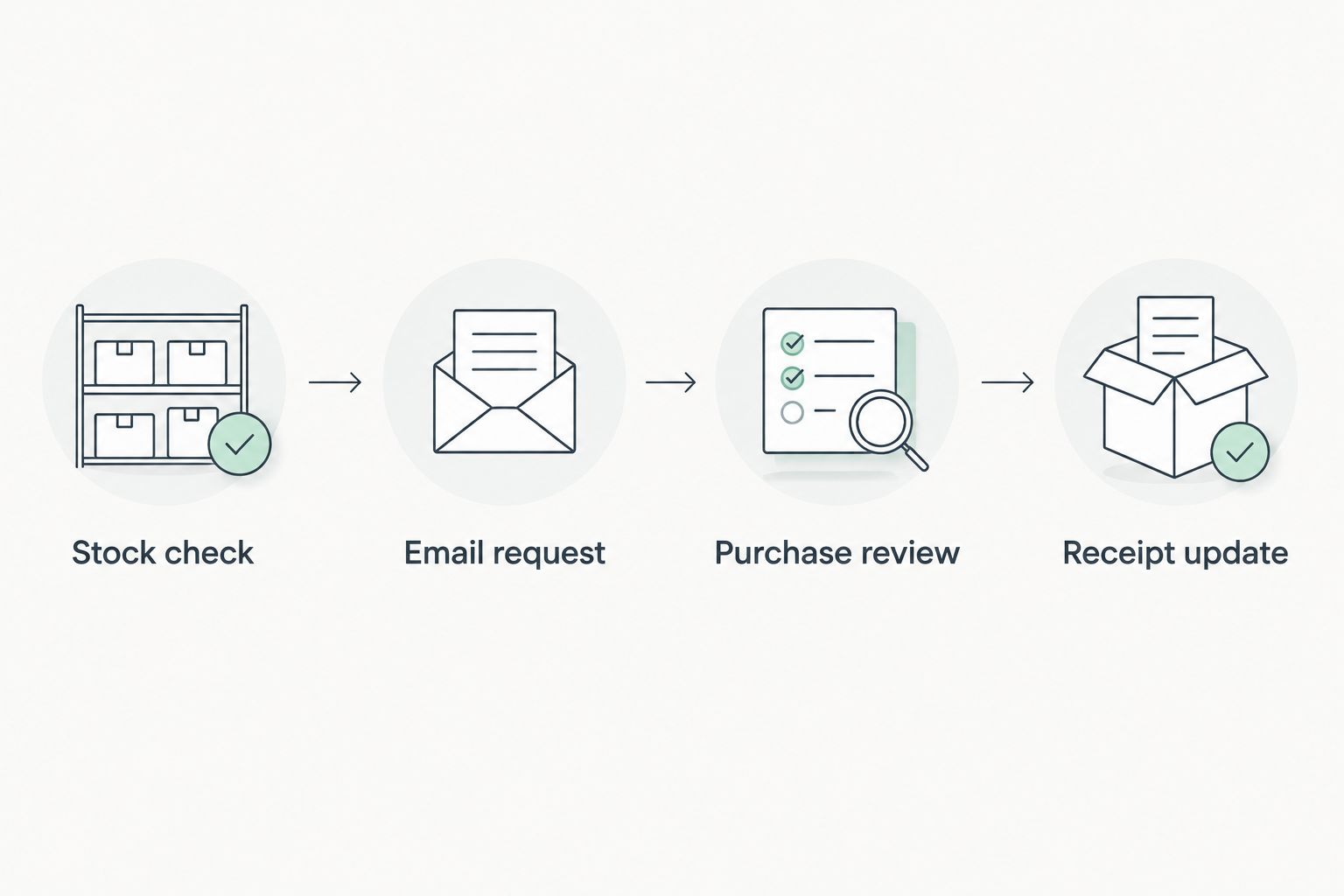
The request cycle has four distinct stages: Stock check, Email request, Purchase review, and Receipt update. Only the first two are automated here.
Variant: check stock whenever quantities change
Best for: teams that maintain the spreadsheet directly. A scheduled check is simple, but it waits until the next run after someone updates a stock quantity.
For direct spreadsheet edits, you can attach an installable edit trigger to the same checker. In Apps Script, open Triggers, select Add Trigger, choose checkBandanaStock, set Select event source to From spreadsheet, and set Select event type to On edit.
Keep the scheduled trigger as a backup. Script executions and API requests do not cause spreadsheet edit triggers to run, so an edit-trigger-only design misses those update paths.
This variant scans the inventory sheet after edits, including edits unrelated to stock. It suits a small, directly maintained register; a larger implementation should limit processing to relevant rows and columns.
Expected result: Direct edits prompt an inventory check, while the scheduled run still checks changes made through other routes. The open-request status remains the control against repeat requests.
Troubleshooting
No email arrives for a low-stock SKU
Check that Open request is empty, all quantity cells contain numbers, and Target exceeds Reorder point. Then inspect Executions in Apps Script for authorization or email-service errors and check the trigger owner's inbox and spam folder.
Requests repeat before replenishment arrives
Check whether someone cleared Open request after submitting the purchase. Keep it populated until receiving is complete; also check for another spreadsheet or another owner's automation monitoring the same stock.
A row remains PENDING or REVIEW
Inspect the execution record and the recipient's email before retrying. PENDING can indicate an interrupted execution; REVIEW means the send attempt raised an error. Clear the status only after resolving whether a request was already sent or acted upon.
The proposed quantity uses the wrong unit
Make Stock, Reorder point, and Target use the same unit. If your tracker counts individual bandanas but purchasing uses packs, convert the requested quantity during review and record the confirmed units in the purchase record.
The trigger stops working after a staffing change
Installable triggers run under their creator's account. Assign a new owner to authorize and install the workflow, then remove obsolete triggers so both owners do not generate requests.
Customize your workflow
Extend the request record before connecting more systems. Add a purchasing owner, supplier item reference, purchase-order reference, and receipt note after the existing six columns; the checker continues reading its original fields.
For custom bandanas, include the approved design reference in Description. Wholesale For Everyone offers printing and embroidery on selected products, but a replenishment email does not establish artwork approval or authorize a design change.
For your 2026 process review, check whether routine sales, event allocations, and damaged goods all reach the stock register. Automation cannot correct a quantity that nobody updates.
The next useful improvement is a receiving checklist, not automatic checkout. Once stock counts and request statuses stay accurate, connect a draft purchase-order workflow through your purchasing system's documented capabilities.
FAQ
Can I automatically reorder wholesale bandanas when stock runs low?
You can automatically detect low stock and email a replenishment request using the workflow above. Automatic supplier checkout requires a separately verified ordering connection; this script does not place purchases.
Does Wholesale For Everyone need to connect to my spreadsheet?
No supplier connection is required for this email-request workflow. The script reads your inventory spreadsheet and sends the request to the account that installed it.
What is the best reorder point for bandanas?
Set the reorder point from expected consumption during confirmed replenishment time plus safety stock. Use separate thresholds for variants with different consumption patterns.
Will the script email me again while an order is pending?
The script skips any row with a nonempty Open request cell. Keep that status populated while the request or purchase remains unresolved.
Can this workflow reorder custom-printed bandanas?
The workflow can request replenishment for a custom-bandana SKU, but it cannot approve artwork or submit a custom order. Include the approved design reference and verify the specification before purchasing.
Does changing a stock number trigger an immediate email?
A direct spreadsheet edit starts a check if you install the optional edit trigger. Script and API updates do not activate that edit trigger, so retain the scheduled check.
When should I clear the open-request status?
Clear the status after you update inventory for completed receiving, or after you resolve a canceled request. Clearing it while stock remains low allows the next check to request replenishment again.
One last thing
A purchase confirmation is not a stock receipt. In your 2026 tracker, keep the request open until the physical quantity is updated; that single sequencing rule prevents the next low-stock check from asking you to buy the same replenishment again.
Related guides
- Connect a Google Sheets tracker to wholesale reorders
- Connect QuickBooks to wholesale purchase orders
- From artwork submission to finished custom bandanas