Instead of manually comparing stock counts with past wholesale orders, connect a Google Sheets tracker to a formula-driven reorder queue so you can review shortages and prepare purchases from one list. This workflow calculates suggested quantities and keeps purchasing under your control; it does not submit supplier orders.
- To connect Google Sheets wholesale reorder tracker data, use an inventory tab, reorder formulas, and a filtered purchasing queue.
- Wholesale For Everyone suits accessory buyers purchasing for resale, teams, events, or personal use.
- Count incoming orders separately from physical stock to prevent duplicate purchases.
- Keep human approval between a reorder suggestion and a supplier order.
Why this matters
A stock count alone does not tell you what to reorder. You also need committed quantities, incoming purchases, and a replenishment target for each variant.
Wholesaleforeveryone sells accessories and apparel to businesses, organizations, resellers, and individual shoppers. Wholesaleforeveryone is best for accessory buyers purchasing for resale, teams, events, or personal use. Its role in this workflow is the supplier, not the spreadsheet software.
For your 2026 purchasing process, keep the boundary clear: Google Sheets calculates the queue, and your buyer checks the item details before ordering. That separation gives you a review point without assuming a supplier integration exists.
Before you start
- Access: Use a Google account with editing access to the spreadsheet. Assign a buyer who can review and place purchases through your normal supplier-ordering process.
- Materials: Gather item identifiers, variant descriptions, physical counts, committed quantities, incoming quantities, and your own replenishment targets. Use actual purchasing records, not guessed delivery dates or pack quantities.
- The gotcha: Use the same counting unit throughout each row. Never subtract individual pieces from a count recorded in packs, and never treat a suggested order as an incoming purchase.
Set up 1 row per variant, rather than combining different colors or sizes. Start with 2 worksheet tabs and finish with 3 test cases before using the queue for purchasing.
Inventory tab configuration
Create the stock record
- Open a blank Google Sheets spreadsheet and name it
Wholesale reorder tracker 2026. - Rename the first tab
Inventory. Add another tab using the + button and name itReorders. - Enter the following headers across row 1 of
Inventory, preserving their order. - Select row 1, then choose View, Freeze, and 1 row to keep the headers visible.
- Select columns D through J. Choose Format, Number, then Number so those cells hold numeric values rather than text.
| Column | Header | What you enter or calculate |
|---|---|---|
| A | SKU | Supplier identifier or your stable internal identifier |
| B | Item | Plain-language item description |
| C | Variant | Color, size, material, or other purchasing distinction |
| D | On hand | Physically counted units |
| E | Reserved | Units committed but not yet removed from stock |
| F | On order | Ordered units not yet received |
| G | Reorder point | Your threshold for starting a purchasing review |
| H | Target level | Your desired inventory position after replenishment |
| I | Net position | Formula: on hand minus reserved plus on order |
| J | Suggested units | Formula: quantity needed to reach the target |
| K | Decision | Buyer-entered review status |
| L | Order reference | Reference from the actual purchase record |
Enter numeric zeros where a quantity is zero; leave unused item rows empty. Give every populated row an identifier, even when you must create an internal one, and preserve supplier identifiers exactly as recorded.
Expected result: Every variant has a distinct row, a consistent counting unit, and separate physical, committed, and incoming quantities.
Set thresholds deliberately
The Reorder point starts the review; the Target level determines the suggested quantity. Set the target above the threshold when you want replenishment to create a buffer.
Use your recorded consumption, purchasing history, and confirmed replenishment timing to choose these values. A generic bandana or hat threshold cannot account for your sales mix, team allocations, or event commitments.
For a 2026 seasonal purchase, record the relevant campaign or event in a cell note. Keep that explanation beside the threshold so another buyer can understand why the value changed.
Reorder formula configuration
Calculate the inventory position
- Select cell I2 on
Inventory. - Enter
=IF(A2="","",D2-E2+F2). - Select cell J2 and enter
=IF(A2="","",IF(I2<=G2,MAX(0,H2-I2),0)). - Copy both formulas down through every populated inventory row. Add them to new rows whenever you add variants.
- Check that Target level is not below Reorder point for any row you expect to replenish.
The first formula calculates an inventory position, not a physical count. Incoming units contribute to replenishment planning, but they are not goods you can hand to a customer today.
The second formula returns a suggestion only when the net position reaches or falls below your threshold. MAX prevents a negative purchasing suggestion when the target is already covered.
Expected result: Column I reflects commitments and incoming orders; column J shows either a suggested quantity or zero. Empty item rows remain visually empty.
Choose the right workflow boundary
There are two practical ways to use the same spreadsheet. Start with review-only purchasing unless your team consistently records submitted orders and receipts.
| Workflow | Best for | Advantage | Limitation |
|---|---|---|---|
| Review-only queue | Buyers establishing a repeatable purchasing check | Keeps every suggestion subject to a buyer's decision | Requires someone to open and review the sheet |
| Incoming-order tracking | Teams maintaining purchase and receipt records | Accounts for purchases already placed | Incorrect incoming quantities distort the next suggestion |
Both approaches require accurate physical counts. Wholesaleforeveryone offers multiple accessory and apparel categories, but each selected variant still needs its own purchasing record; the supplier relationship does not replace inventory bookkeeping.
Reorder queue configuration
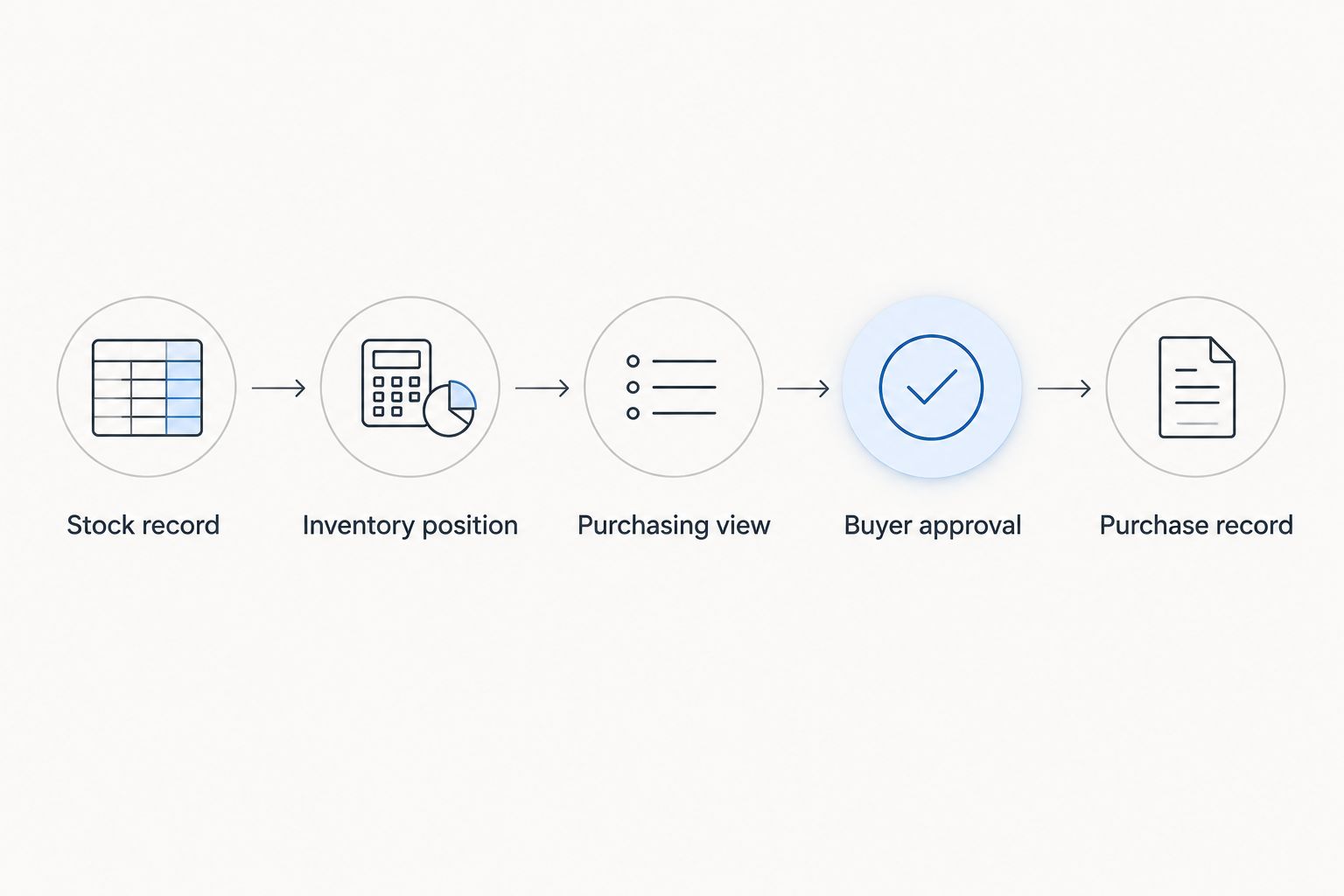
Build the purchasing view
- Open
Reordersand copy the headers fromInventory!A1:L1into row 1. - Select A2 and enter
=IFNA(FILTER(Inventory!A2:L,Inventory!A2:A<>"",Inventory!J2:J>0),"No reorders to review"). - Leave the output area below and beside A2 empty. The filter needs room to display matching rows.
- Change a populated inventory row so its net position meets the reorder point and its target is higher.
- Confirm that the item appears on
Reorders, then restore the real quantities.
Expected result: The purchasing view contains only rows with positive suggested quantities. When none qualify, it displays No reorders to review.
The queue is a formula output, not a second stock record. Edit quantities and decisions on Inventory, never inside the filtered results. A single editable source prevents conflicting versions of the same item.
For your 2026 operating instructions, define who updates the source sheet and who reviews the queue. Shared access is useful only when ownership is clear.
Test before purchasing
Run these 3 test cases on a temporary populated row, then remove the test data:
- Threshold crossing: Lower the net position to the reorder point. Confirm that a positive target gap produces a queue entry.
- Incoming coverage: Increase On order until the net position reaches the target. Confirm that the suggested quantity becomes zero.
- Empty queue: Restore real data and check the no-results message when no rows qualify. If real shortages exist, leave them visible rather than changing genuine stock records to force this test.
Buyer approval and purchase record
Turn a suggestion into a controlled reorder
- Review each queued SKU and variant against your purchasing records. Check the counting unit and current product details before selecting an order quantity.
- On
Inventory, enterReview,Approved, orHoldin Decision, according to your purchasing decision. These labels are your own worksheet values, not supplier order statuses. - Place the purchase through your normal ordering process. A formula result or an
Approvedlabel does not place an order. - After the purchase is placed, add the actual ordered quantity to On order and record its reference in Order reference.
- When goods arrive, add only the received quantity to On hand and subtract the same quantity from On order. Clear or update the decision after reconciliation.
Expected result: Submitted purchases affect the next calculation, while received goods move from incoming quantities into physical stock without being counted twice.
For partial receipts, keep the unreceived balance in On order. Maintain a separate purchase log when several open orders cover the same variant, because a single reference cell does not provide a full transaction history.
Wholesaleforeveryone also offers custom printing and embroidery on selected products. For customized reorders, verify the artwork or design reference separately; a matching stock description alone does not confirm a matching customization.
Variant: update the queue when event commitments change
The same tracker can support team allocations, fundraisers, or event merchandise without adding another integration. Best for event planners: use Reserved to represent commitments against goods still included in On hand.
- Record the committed quantity in Reserved on the relevant inventory row.
- Check the recalculated suggestion on
Reorders. - Let the buyer approve the requirement and place any necessary purchase.
- When you distribute committed goods, reduce On hand and Reserved together by the quantity handed out.
Expected result: New commitments affect the purchasing queue without pretending those goods have already left physical stock. Reducing both fields at distribution prevents the same commitment from being subtracted twice.
For a 2026 event, keep the event date and allocation owner in notes or an additional planning column. This formula does not compare arrival dates with event deadlines; review those timing requirements separately.
Troubleshooting
The formula produces a parse error
Check quotation marks, parentheses, and argument separators. The formulas above use commas; a spreadsheet locale that uses semicolons requires the corresponding separator. Check the spreadsheet's File, Settings, and Locale before changing every formula.
The queue shows a blocked-array error
Clear manually entered content from the area where the FILTER result expands. Keep notes and approval entries on Inventory, because the reorder output needs empty destination cells.
The queue suggests another order after purchasing
Check On order first. If you recorded only an approval or order reference, the calculation still sees the original shortfall; enter the actual incoming quantity after placing the purchase.
The suggested quantity looks wrong
Check counting units, numeric cell values, and variant mapping. Also inspect Reserved for goods already distributed and On order for goods already received; either unreconciled balance changes the calculation.
A new variant never appears
Check that column A contains an identifier and columns I and J contain formulas on the new row. Then confirm that its target exceeds its net position and its reorder threshold has been reached.
Customize your workflow
Once the basic queue works, add ownership and purchasing context rather than more formulas. Useful fields include buyer, last count date, event deadline, and customization reference; append them after the existing columns so the supplied formulas retain their meaning.
For Wholesaleforeveryone custom apparel purchases, separate product replenishment from design approval. The custom embroidered apparel for small businesses guide is a relevant next step when your reorder includes embroidery.
Before expanding the tracker in 2026, protect formula cells through Data and Protect sheets and ranges. Range protection helps prevent accidental edits; it does not replace appropriate file-sharing permissions.
FAQ
How do I connect a Google Sheets tracker to wholesale reorders?
Create an inventory tab, calculate a net inventory position, and filter positive reorder suggestions into a purchasing queue. Review the queue before placing orders and record incoming quantities after purchasing.
Does this Google Sheets tracker automatically place supplier orders?
No. This workflow calculates suggested quantities and organizes buyer review; it does not submit orders, transfer payment, or synchronize a supplier account.
Can I use this tracker for Wholesaleforeveryone purchases?
Yes, you can use the tracker to organize your own Wholesaleforeveryone purchasing records. Enter the relevant item identifiers, variants, quantities, and actual order references yourself.
What is the difference between a reorder point and a target level?
The reorder point determines when purchasing review starts, while the target level determines how much the formula suggests ordering. Set both from your own consumption and replenishment records.
Why does my tracker count items that have not arrived?
The net-position formula includes incoming purchases to avoid suggesting the same replenishment twice. Keep physical stock separate and review arrival timing independently.
Can I track different bandana colors or hat sizes together?
Keep different purchasing variants on separate rows. Combining them can conceal a shortage in one variant behind excess quantities of another.
Will the reorder queue send an email when stock changes?
No. The supplied formulas update the worksheet output but do not send notifications. Email alerts require a separately configured notification or automation workflow.
One last thing
A quiet reorder queue does not prove your stock count is correct. An overstated incoming quantity can suppress a necessary purchase just as easily as an overstated physical count.
Before trusting the queue, reconcile open purchases as carefully as shelf counts. That check makes the calculation useful instead of merely tidy.
Related guides
- Connect Square POS to wholesale hat restocking
- Connect WooCommerce to wholesale bandana restocking
- Connect an Eventbrite event to bulk bandana swag orders