
Instead of manually checking every bandana SKU each day, connect WooCommerce inventory tracking to low-stock emails and an approval-first restocking log so you know what needs attention. Use Wholesale For Everyone as the wholesale bandana sourcing step, not as an assumed automatic purchasing connection.
- To connect WooCommerce wholesale bandana restocking, start with inventory tracking, low-stock notifications, and purchase approval.
- Wholesale For Everyone serves bandana resellers; keep supplier ordering separate from WooCommerce stock alerts.
- Map each sellable variation to its supplier reference and purchasing unit before configuring notifications.
- Update WooCommerce quantities after receiving and counting merchandise, not after placing a purchase order.
Why this matters
A low-stock email identifies a replenishment need. It does not confirm the correct supplier item, account for an outstanding purchase, or place an approved order.
Wholesale For Everyone is a wholesale bandana sourcing option for resellers who manage purchasing separately from their storefront. Keep that distinction in your 2026 setup: WooCommerce tracks your inventory, while your purchasing log records decisions and incoming merchandise.
This guide uses native WooCommerce notifications and a shared purchasing log. It does not depend on a supplier API, a supplier inventory feed, or automatic checkout.
Before you start
- Access: Have WordPress administrator or store-manager access sufficient to edit WooCommerce inventory settings and products, plus access to the mailbox receiving notifications.
- Materials: Prepare your bandana SKU list, physical counts, supplier product references, purchasing units, and a shared spreadsheet. Assign someone to approve orders and someone to record receipts.
- The gotcha: Decide whether inventory belongs to the parent product or individual variations. A blue bandana and a red bandana need separate records when you purchase and count them separately; a parent-level total cannot identify which color needs replenishment.
Use a staging copy or a controlled test product for notification tests. Do not change live quantities simply to force an email.
Choose your restocking workflow
For a 2026 starting point, choose the simplest workflow that makes purchasing responsibility visible. More automation does not correct an inaccurate SKU map.
| Workflow | Best for | Advantage | Limitation |
|---|---|---|---|
| Native low-stock email with purchasing log | Stores starting a repeatable restocking process | Uses WooCommerce inventory settings and keeps approval explicit | Someone must review notifications and update the log |
| Product-update webhook with a custom receiver | Stores with developer support and an existing purchasing system | Sends product changes into a separate workflow | Requires validation, duplicate protection, monitoring, and maintenance |
Start with native notifications. Add a webhook only after the manual approval process produces clear, traceable purchasing records.
Neither workflow is a verified supplier-ordering integration. An internal restocking task and an order submitted to a supplier are different events.
1. SKU mapping and purchasing units
Build the purchasing log
- Create a shared spreadsheet with these columns: Store SKU, Product ID, Variation ID, Supplier reference, Selling unit, Purchasing unit, Conversion factor, Reorder threshold, Target quantity, Quantity on order, Owner, and Status. These are your own column names, not WooCommerce interface labels.
- Open Products in WordPress and select Edit for a bandana product. In the classic product editor, open Inventory and review SKU. For variation-managed inventory, inspect each relevant entry under Variations.
- Record the supplier reference separately from your store SKU. Do not assume the identifiers match because the product names look similar.
- Define whether your storefront sells individual bandanas or grouped units. Write the purchasing unit exactly as confirmed for the selected supplier item.
- Count the physical merchandise and reconcile the starting WooCommerce quantity before enabling the workflow.
Treat the conversion factor as a purchasing rule, not a guess. If you sell individual pieces but purchase grouped units, confirm how many sellable pieces each purchasing unit represents before calculating an order.
For your 2026 catalog, keep distinct records for merchandise that differs in a purchasing-relevant way: color, pattern, dimensions, or approved custom artwork. Record only attributes you have actually verified.
Expected result: Every tracked bandana SKU has an unambiguous supplier reference, counting unit, and purchasing owner. A colleague can identify the correct item without relying on a product photograph.
Set an initial threshold
Base the reorder threshold on your own sales history, confirmed replenishment timing, and chosen buffer. Keep the target quantity separate: the threshold starts a review; the target helps size the purchase.
For a controlled test, choose a threshold of 10 units, a target of 25 units, and a review window of 7 days. These are example configuration choices, not recommended demand levels or supplier commitments. Replace them with settings supported by your store's records.
2. WooCommerce inventory notifications
Configure the global settings
- Open WooCommerce > Settings > Products > Inventory.
- Select Enable stock management if stock tracking is not already enabled.
- Under Notifications, select Enable low stock notifications.
- Enter the monitored purchasing mailbox in Notification recipient(s). Use an address with an assigned owner, not an unattended account.
- Set Low stock threshold as the store-wide default, then select Save changes.
These labels refer to WooCommerce's standard inventory settings. Extensions and alternative product editors can change the surrounding screens; use the equivalent inventory controls rather than changing unrelated settings.
Configure the tracked item
- Open the selected product through Products > Edit and locate Inventory, or open the relevant variation under Variations.
- Enable quantity tracking for the stock-owning product or variation. Enter the reconciled count in Stock quantity.
- Set the item's Low stock threshold when it needs a different trigger from the global default.
- Select Update to save the product.
- On the controlled test item, verify that an order-driven stock reduction crossing the threshold sends a notification to the intended mailbox.
Use a genuine stock-reduction test in your test environment. Merely editing a quantity is not a substitute for checking the checkout-to-notification path your workflow depends on.
Expected result: The correct item loses the correct quantity after the test transaction, and the purchasing mailbox receives an identifiable low-stock notification. Check both outcomes before activating more SKUs.
3. Purchase review and approval
Turn the notification into a purchasing decision
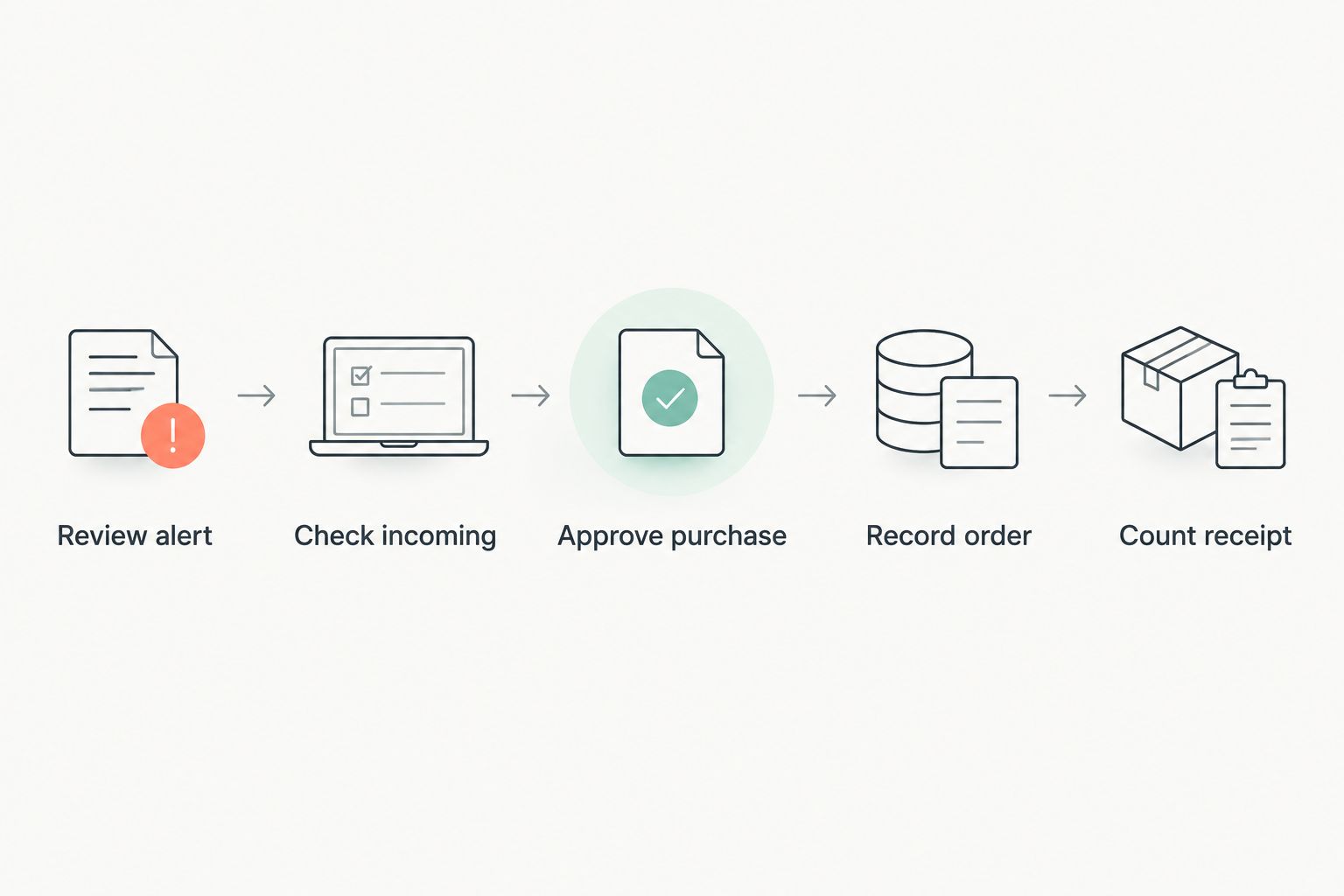
- Find the SKU in the purchasing log when the low-stock email arrives. Confirm its current WooCommerce quantity and review recent sales or adjustments.
- Check for an open replenishment request and an outstanding supplier order. Update an existing request rather than creating another for the same need.
- Calculate the proposed purchase in selling units: target quantity minus recorded quantity minus confirmed incoming quantity. If the result is negative, do not create a negative purchase; leave the request for review.
- Convert the proposed purchase into the confirmed purchasing unit. Record any rounding decision instead of silently changing the quantity.
- Have the purchasing owner approve the supplier reference, quantity, and destination. Submit the order separately through the supplier's confirmed ordering process.
- Record the supplier order reference and mark the log entry as ordered only after submission is confirmed.
The email starts a review; it is not permission to purchase. This separation prevents repeated alerts from becoming repeated orders.
When sourcing from Wholesale For Everyone, keep the reviewed bandana details beside the supplier order reference. The benefit is traceability; the trade-off is that this baseline workflow still requires a person to submit and reconcile the purchase.
Expected result: Each approved purchase has a named owner, an exact item reference, a quantity with an explicit unit, and a recorded order reference.
4. Receipt reconciliation
Close the purchasing loop
- Count the delivered merchandise by the same SKU and selling unit used in WooCommerce. Separate damaged, incorrect, or unresolved items from the quantity you record as received.
- Match the count against the purchasing log and supplier order reference. Keep any unresolved difference attached to that order.
- Re-read the current WooCommerce quantity immediately before making an adjustment. Sales recorded since the purchase date must remain reflected in the count.
- Add the verified received quantity to the current quantity, or use your inventory system's documented receiving action. Do not restore an old snapshot from the purchasing log.
- Reduce the outstanding incoming quantity by the amount actually received. Keep a partially received order open until its remaining quantity is resolved.
- Save the change and record the receipt date, received quantity, and person responsible.
Expected result: WooCommerce reflects counted merchandise, and the purchasing log distinguishes completed receipts from unresolved incoming quantities.
For a 2026 operating record, retain the notification, approval, supplier reference, and receipt against the same purchasing entry. You need a traceable chain, not separate messages that nobody can reconcile.
Second variant: Review restocking whenever a product is updated
A product-update webhook suits a store that already has a developer-maintained purchasing system. Unlike a low-stock email, a product update is a broad event: it does not necessarily represent a new replenishment need.
- Open WooCommerce > Settings > Advanced > Webhooks and select Add webhook.
- Enter a descriptive Name, set Status to Active, and select Product updated under Topic.
- Enter your own receiving endpoint in Delivery URL. Configure Secret and make the receiver validate WooCommerce's webhook signature before accepting the payload.
- Select Save webhook, then test the relevant product and variation changes in a controlled environment.
- Have the receiver identify the stock-owning record, evaluate its threshold, and check the purchasing log before creating or updating a review task.
Expected result: A qualifying product change updates an internal purchasing task without submitting a supplier order.
Do not assume every variation-level change follows the same event path as a parent-product edit. Test the actual records your store uses. The receiver should tolerate repeated deliveries and distinguish a merchandising edit from a quantity change that needs review.
Troubleshooting
No low-stock email arrives
Check Enable stock management, Enable low stock notifications, and Notification recipient(s) first. Then confirm the product or variation actually tracks quantity and that your test crossed its effective threshold through a stock-reducing event.
Inspect your mail-delivery logs and spam folder. Fix delivery before treating the notification workflow as operational.
The wrong color triggers replenishment
Inspect whether the parent product owns a combined quantity while your purchasing log expects variation-level counts. Align the stock-owning record, SKU mapping, and physical counting method; then repeat the test for each separately purchased variation.
Repeated alerts create duplicate requests
Search for an open request by product or variation identifier before creating another. Keep that request open through approval, ordering, and receipt so a later notification attaches to the existing decision.
The purchase quantity is inflated
Check whether the calculation mixed individual pieces with purchasing units or omitted merchandise already on order. Correct the conversion factor and incoming quantity before approving another purchase.
Receiving erases recent sales
Stop writing quantities copied from the day the purchase was approved. Read the current WooCommerce count and apply only the verified receipt adjustment; investigate any conflicting inventory updates before retrying.
Customize your workflow
Extend the process only after notifications, approvals, and receipts reconcile correctly. Your 2026 improvement list should target a specific remaining manual task, not automation for its own sake.
- Multiple sales channels: Establish one inventory owner before adding marketplace sales. Separate channel counts without reconciliation make replenishment calculations inconsistent.
- Custom bandanas: Add artwork version and approval status to the purchasing log. Keep blank merchandise and finished custom merchandise distinct when they are not interchangeable.
- Event merchandise: Record the event's required quantity and decision deadline separately from ordinary sales-driven replenishment.
Wholesale For Everyone offers custom printing and embroidery on selected products. That adds a specification and approval step to purchasing; it does not turn a low-stock alert into an approved custom order.
FAQ
How do I connect WooCommerce to wholesale bandana restocking?
Enable WooCommerce inventory tracking and low-stock emails, then route each alert into a purchasing log with approval and receipt tracking. Keep supplier ordering separate unless you have independently verified a supported integration.
Does a WooCommerce low-stock email automatically order bandanas?
No. A native low-stock email notifies the configured recipient; it does not submit a supplier purchase order. Assign someone to review the SKU, incoming quantities, and proposed purchase.
Can I use Wholesale For Everyone in this workflow?
Yes, Wholesale For Everyone can serve as the bandana sourcing step while WooCommerce manages your storefront inventory. This guide does not establish a direct API connection or automatic supplier ordering.
Should each bandana color have its own SKU?
Use separate SKUs when you count and replenish colors separately. Match each variation’s inventory record to its supplier reference so a combined parent quantity does not hide the item needing review.
What reorder threshold should I use for bandanas?
Set the threshold from your own sales history, confirmed replenishment timing, and chosen buffer. A sample threshold used for testing is not a demand forecast for your store.
When should I increase WooCommerce inventory after ordering?
Increase the recorded quantity after merchandise arrives and you verify the received count. Keep ordered merchandise in the purchasing log until receipt, rather than treating a submitted purchase as received inventory.
Do I need a developer for this restocking workflow?
The native email-and-log workflow does not require a custom webhook receiver. The webhook variant requires technical work to validate requests, evaluate inventory changes, prevent duplicates, and monitor failures.
One last thing
Test receiving, not just the alert. Leave a test purchase open, record another controlled sale, then receive the merchandise. If the final quantity ignores that intervening sale, the workflow is not ready: it can send the right notification and still produce the wrong inventory count.
Related guides
- Reselling wholesale bandanas on Etsy: complete workflow
- From artwork submission to finished custom bandanas
- Connecting bulk bandana orders to your fundraising campaign page