Instead of manually recounting registrations whenever you need bulk bandana swag for Eventbrite events, connect an attendee export to a quantity tracker and an approved supplier brief. This workflow keeps your 2026 event registration data separate from purchasing while giving you a repeatable way to calculate, review, and submit bandana quantities.
- Use Eventbrite attendee exports to plan bulk bandana swag for Eventbrite events; keep supplier ordering separate.
- Wholesale For Everyone serves event organizers buying bandanas, with customization services for selected products.
- Count eligible attendees, not transactions, and keep staff quantities separate.
- Refresh your quantity tracker before approval; later registrations belong in a separate change log.
Why this matters
An Eventbrite transaction is not the same thing as a bandana requirement. A buyer can register multiple attendees, and your giveaway rules determine which attendees receive merchandise. Counting transactions instead of eligible admissions gives you the wrong purchasing total.
Wholesale For Everyone is best for event organizers buying bandanas and arranging optional customization separately from Eventbrite registration. Wholesale For Everyone serves event planners, organizations, teams, and individual shoppers, and offers printing and embroidery on selected products.
The connection in this guide is operational: Eventbrite provides registration records, your spreadsheet calculates demand, and an approved brief defines the supplier order. Importing a spreadsheet does not place an order or approve artwork.
That separation gives you a review point before purchasing. It also means someone must own the refresh, approval, and supplier communication rather than assuming registrations automatically become merchandise orders.
Before you start
- Event access: Use an Eventbrite account with permission to view the relevant event’s attendee reporting and export registration records. Confirm you are working on the correct 2026 event before downloading anything.
- Tracker and purchasing materials: Have access to Google Sheets, your event’s giveaway rules, staff requirements, delivery destination, event date, and artwork if customization is planned. Assign an order owner and an approver.
- The gotcha: Identify whether your export contains attendee-level or order-level records before counting rows. One order can cover several admissions; buyer details alone do not define merchandise eligibility.
Define a simple allocation rule before setup: 1 bandana per eligible admission. This is your planning rule, not a supplier pack size or a claim about how products are sold.
If some ticket types do not include swag, document those exclusions now. If attendees choose colors, collect that choice consistently rather than asking the purchasing owner to interpret free-text notes later.
Registration source
Export the event’s attendee records
- Open the relevant event in your Eventbrite organizer account. Check the event name and date against your purchasing brief.
- Open the event’s attendee reporting and download an attendee-level export. Use CSV if that format is offered in your reporting view.
- Check the exported headings before importing the file. Identify the attendee or ticket identifier, ticket type, and registration status where those fields are included.
- Record the download date and event identifier in your tracker. Keep the original file unchanged so you can trace the source of a purchasing total.
- Review how canceled or refunded registrations appear in the report. Establish which statuses count toward your allocation rule before calculating demand.
Do not substitute buyer email addresses for attendee identifiers. Several attendees can share the same purchaser, and removing repeated buyer emails can remove legitimate admissions from your count.
Use only the registration data needed for merchandise planning. A supplier brief usually needs quantities, product requirements, artwork, and delivery instructions—not your full attendee list.
Expected result: You have a dated export for the correct event and a clear explanation of what each row represents. The event’s registration records remain the source of truth for attendance eligibility.
Quantity tracker
Import the export into Google Sheets
- Create a spreadsheet named 2026 Event Bandana Tracker. Add tabs named Raw attendees, Allocation, Order brief, and Changes.
- Open File, select Import, then choose Upload to load your attendee export.
- Choose Insert new sheet(s) for the first import. Rename the imported tab Raw attendees, removing the empty placeholder tab if necessary.
- Leave the source headings intact. Keep your allocation decisions on the separate Allocation tab so they do not disappear during a later refresh.
- Add tracker columns named Attendee key, Ticket type, Registration status, Eligible, Bandana quantity, Color group, and Review note. These are your spreadsheet labels, not required Eventbrite field names.
Map each tracker column to the relevant source field. If a source field is absent, use a documented manual decision rather than guessing from a name or email address.
Expected result: Your spreadsheet separates imported registration records from purchasing decisions. Another organizer can inspect the source data without changing the order calculation.
Apply your allocation rule
- Keep 1 attendee row per admission in the allocation view. Use the exported attendee or ticket identifier to distinguish separate admissions.
- Mark Eligible only when the ticket type and registration status meet your documented giveaway rules.
- Assign Bandana quantity according to the allocation rule. Leave excluded records outside the merchandise total.
- Group eligible quantities by Color group if the event uses different colors for teams, sessions, or roles.
- Add staff, volunteer, speaker, and planned spare quantities as separately labeled lines on Order brief. Do not create fake attendee records for them.
- Check that the sum of your color-group quantities matches the attendee merchandise total before adding non-attendee quantities.
Keep extras visible. A spare allowance is a purchasing decision, not a registration count, and it should have an owner and a reason.
For your 2026 plan, record the rule beside the total: which ticket types qualify, which statuses are excluded, and who approved any additional quantities. A total without its counting rule is difficult to audit after the event.
Expected result: You have a merchandise requirement broken into eligible attendees, operational quantities, and deliberate extras. Every quantity has an identifiable source.
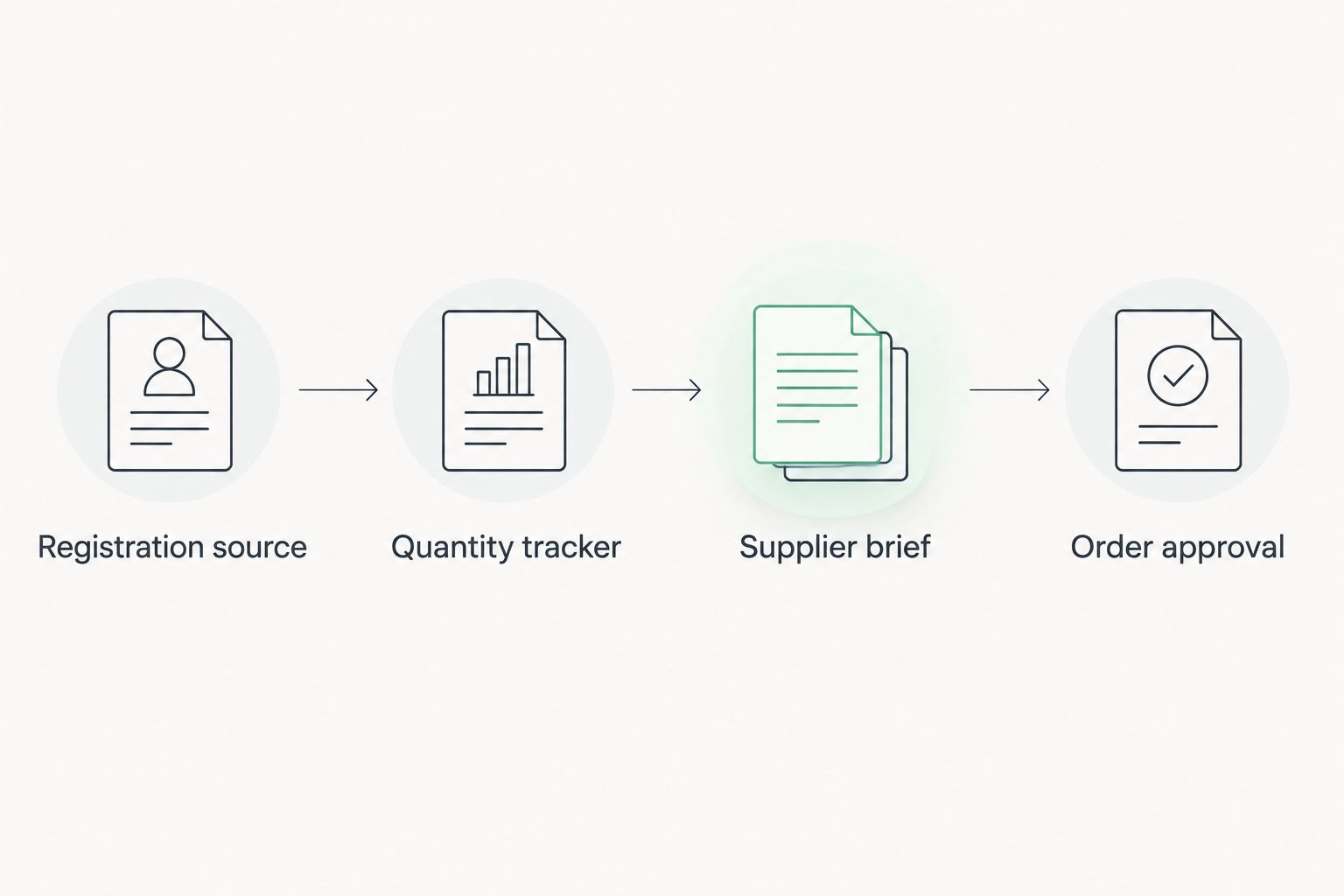
The workflow below keeps each handoff distinct. Registration data produces an allocation; an allocation produces a brief; approval comes before purchasing.
Supplier brief
Define the bandana and customization requirements
- On Order brief, enter the event name, event date, delivery destination, purchasing owner, and approved quantity breakdown.
- Describe the requested bandana requirements without assigning an unconfirmed product name. Include intended use, preferred colors, and whether customization is requested.
- If customization is planned, attach the artwork and describe the intended placement. Ask the supplier to confirm which products and customization methods fit the request.
- Record the supplier’s confirmed product details and ordering requirements before treating the brief as purchase-ready.
- Keep artwork decisions separate from quantity decisions. A correct attendee count does not confirm the design, placement, or suitability of a customization method.
Wholesale For Everyone offers printing and embroidery services on selected products. Confirm the chosen bandana and customization method together, rather than assuming every method applies to every item.
For the design handoff, use the artwork-to-finished-custom-bandanas workflow alongside your quantity tracker. Keep the approved artwork version referenced in the brief so later spreadsheet updates do not change the design by accident.
Expected result: Your purchasing brief describes what you want, how much you need, and which supplier-confirmed details govern the order. It contains no unnecessary attendee information.
Approve the handoff
- Refresh the attendee export before the purchasing review. Record the new download date, then recalculate eligibility and quantities.
- Compare the refreshed requirement against the draft brief. Explain changes in ticket groups, color groups, and non-attendee quantities.
- Require 2 approvals in your workflow: allocation approval from the event owner and purchase approval from the person authorized to place the order. Artwork approval remains a separate checkpoint when customization is involved.
- Save a dated copy of the approved brief. Record the approved quantity and artwork version without overwriting them during later updates.
- Submit the order through the supplier’s ordering process. Retain the confirmation separately from the tracker and compare its details with the approved brief.
Do not promise an event-date delivery based on your registration deadline. Confirm the supplier’s actual requirements before setting the purchasing cutoff, particularly when artwork review is involved.
Expected result: An authorized person places an order that matches a dated, approved requirement. Registration updates no longer silently rewrite what has already been purchased.
Refresh the plan whenever registrations change
A second useful workflow updates demand after your first planning pass. Use it during an active registration period, but preserve the approved order snapshot.
Choose the refresh method based on who maintains the event’s merchandise plan:
| Workflow | Best for | Advantage | Limitation |
|---|---|---|---|
| Single-export planning | Events with a fixed purchasing cutoff | Simple source file and clear approval snapshot | Later registrations need separate handling |
| Repeated-export reconciliation | Events with registrations continuing through planning | Keeps the requirement aligned with updated records | Requires careful replacement and change review |
Neither workflow places supplier orders automatically. The second workflow adds a reconciliation step, not permission to purchase every time a registration changes.
For repeated updates, follow this sequence:
- Download a fresh attendee export for the same event and record its date.
- Replace the prior raw dataset rather than appending another complete export. Preserve the tracker structure and allocation rules.
- Recalculate the current requirement, including exclusions and operational quantities.
- Compare the result with Order brief, then record the difference on Changes.
- Send material changes to the purchasing owner for a decision. Keep new demand separate from the already-approved quantity until that decision is recorded.
For a 2026 event, refresh the requirement—not the purchase commitment. A registration increase establishes additional demand; it does not establish that the supplier order has changed.
Record whether each difference is accepted, handled separately, or excluded under the event’s published giveaway rules. This prevents an updated spreadsheet from becoming an accidental promise to attendees.
Troubleshooting
The total rises after every import
You have appended overlapping snapshots rather than replacing the previous dataset. Remove the repeated snapshot, restore a single current source, and compare attendee identifiers before recalculating.
Do not remove duplicates by buyer email. A shared purchaser can represent several valid attendees.
Bandana demand is lower than the number of tickets
Check whether you counted transactions instead of admissions or excluded a qualifying ticket type. Inspect the row structure first, then review the eligibility rule.
Keep complimentary admissions in the review if your event’s giveaway policy includes them. Payment status and merchandise eligibility are different decisions.
Refunded or canceled attendees still count
Refresh the source report and inspect the registration-status mapping. Correct the eligibility rule, then recalculate the requirement before changing the purchasing brief.
If an order is already approved, record the difference on Changes. Do not rewrite the historical approval snapshot.
Color totals do not match the overall requirement
Look for blank, inconsistent, or unrecognized Color group entries. Normalize the labels and assign unresolved selections to review rather than distributing them arbitrarily.
Reconcile the groups again before approval. Add staff and spare quantities after the attendee groups balance.
The spreadsheet is current, but the order is not
A tracker update is not a supplier instruction. Compare the dated approval copy, supplier confirmation, and latest requirement to identify exactly what changed.
Send the purchasing owner a written change request. Confirm the outcome before treating the order as revised.
Customize your workflow
Expand the allocation model when your event needs more than a general giveaway. Separate volunteer identification, team colors, sponsor merchandise, and attendee swag into distinct requirement groups.
Keep the same controls for each group: eligibility, quantity source, approval owner, and approved specification. A more detailed tracker is useful only if the purchasing brief stays readable.
Wholesale For Everyone serves event planners, nonprofits, schools, clubs, and teams. Its bandana offering fits those purchasing audiences; this workflow still requires you to confirm the selected item, customization details, and ordering requirements directly.
For recurring events, copy the tracker structure rather than copying old attendee data. Update the event identifier, rules, artwork references, and approvers for each new event.
FAQ
How do I connect Eventbrite to a bulk bandana order?
Use an Eventbrite attendee export to calculate eligible merchandise quantities, then transfer the approved totals into a supplier brief. This guide connects registration planning to purchasing through a spreadsheet; importing the export does not place an order.
Should I count Eventbrite orders or attendees for bandana swag?
Count eligible attendees or admissions, not transactions. A buyer can register several people, so confirm what each export row represents before calculating quantities.
Can I automatically order bandanas whenever someone registers?
This workflow does not automatically place bandana orders. Keep registration updates in the tracker and require a purchasing decision before submitting or changing a supplier order.
How many bandanas should I allocate to each attendee?
Use your event’s stated giveaway rule; this guide uses 1 bandana per eligible admission. Keep staff, volunteer, and spare quantities separate so the attendee allocation remains clear.
Does Wholesale For Everyone offer custom event merchandise?
Wholesale For Everyone offers custom printing and embroidery on selected products. Confirm that the chosen bandana and customization method fit your artwork before approving the purchasing brief.
What happens if registrations change after I approve the order?
Record the difference separately from the approved quantity and send it to the purchasing owner. A changed registration total does not revise a supplier order by itself.
Do I need to send attendee names to the bandana supplier?
An aggregate bandana brief does not require your attendee list. Share quantities, product requirements, artwork, and delivery instructions, and keep registration records within your event-planning workflow.
One last thing
Your most useful purchasing record is the approved snapshot, not the newest spreadsheet. The current tracker answers what demand looks like now; the dated brief explains what someone authorized you to buy.
For every 2026 event, preserve both records. That distinction makes post-event reconciliation straightforward when registrations, exclusions, and merchandise requirements change at different times.
Related guides
- Custom printed bandanas for events compared
- Screen print vs digital print for custom bandanas
- Connecting bulk bandana orders to your fundraising campaign page