Instead of manually checking purchase histories, connect Klaviyo wholesale reorder reminders to your order data, then use a filtered flow to email eligible buyers after a purchase-based delay. This guide covers customer reminders and an internal purchasing variant, without assuming that your supplier has a direct Klaviyo connection.
- Connect Klaviyo wholesale reorder reminders through verified order events, buyer identification, and a purchase-based email flow.
- Klaviyo customer reminders and internal supplier reorder alerts require different data and recipients.
- Wholesale For Everyone supplies wholesale apparel and accessories; configure reminders in your own systems.
- Exclude buyers who reorder during the delay, and test consent, timing, and duplicate events before activation.
Why this matters
A completed order tells you what someone purchased. It does not tell you when they need more. Your reminder needs a defensible interval, a recognizable item or category, and a stop rule when another purchase occurs.
Wholesale For Everyone is best for wholesale apparel and accessories buyers who need merchandise, not an email automation platform. Wholesale For Everyone serves resellers, organizations, businesses, and individual shoppers. Keep the supplier relationship separate from the software connection: your own connected records must provide the reminder's trigger.
For your 2026 setup, decide whose behavior starts the workflow. A customer buying from your store belongs in a customer reminder flow. Your business buying merchandise from a supplier belongs in an internal purchasing process.
Before you start
- Access: Have permission to manage Klaviyo integrations, profiles, flows, and email content, plus access to the system holding completed orders.
- Materials: Prepare a sample order, a test profile, a reliable wholesale-customer identifier, and a documented basis for the reminder interval. Confirm marketing eligibility before sending promotional reminders.
- The gotcha: An imported contact is not a purchase event. Verify that actual orders reach Klaviyo before building a purchase-triggered flow; otherwise, you will have profiles but no qualifying trigger.
Choose the workflow before connecting anything. These options solve different problems, and neither should silently substitute for the other.
| Workflow | Best for | Advantage | Limitation |
|---|---|---|---|
| Customer reorder email | Sellers reminding their wholesale customers | Uses customer purchase history and email eligibility | Elapsed time does not establish that merchandise needs replacing |
| Internal purchasing reminder | Buyers reviewing their own supplier reorders | Keeps purchasing decisions with the responsible employee | Needs a purchasing record or due-date signal, not customer sales alone |
Use the customer workflow only when you control the customer relationship and have an appropriate basis to email the recipient. Buying from a supplier does not make you the sender of that supplier's customer reminders.
Order-data connection
Connect and verify the source
- In Klaviyo, open Integrations and inspect your existing ecommerce connection. If the relevant connection is absent, use Add integrations to locate the supported integration for your order system.
- Complete that integration's authorization instructions using an account with the required permissions. Follow the instructions for your specific platform rather than assuming every connector exposes identical settings.
- Open Analytics, then Metrics, and inspect the purchase metric associated with that integration. Placed Order is a common ecommerce metric; use the metric that your connection actually produces.
- Open a known customer profile and match a purchase event against its source order. Compare the customer identity, timestamp, order identifier, and product information.
- Verify how wholesale customers are identified. Use an existing customer classification or create and populate a deliberate custom profile property. A property named
wholesale_customeris an example you define, not a built-in wholesale setting.
Expected result: A real purchase appears on the correct profile, and you can distinguish wholesale customers from other shoppers.
Do not proceed when the event contains only an email address and a timestamp if your message requires product details. Either fix the event mapping or write a category-neutral reminder that does not pretend to know the purchased item.
For your 2026 data check, retain the source order identifier. It gives you a way to investigate duplicate records without relying on matching names or approximate timestamps.
Separate identity from permission
Use the email identity associated with the actual buyer. Do not substitute an accounts-payable address, a supplier contact, or an employee address simply because it appears on an invoice.
A wholesale classification describes the customer; it does not establish marketing permission. Keep email eligibility and suppression checks separate from the wholesale property, and preserve unsubscribe handling throughout the workflow.
Purchase-triggered flow
Configure the trigger and exclusions
- Open Flows, select Create flow, and choose Create from scratch. Give the flow a descriptive name, such as
Wholesale reorder reminder 2026. - Choose a metric trigger and select your verified purchase metric. Do not select a similarly named metric from an unrelated integration.
- Add a profile filter that limits entry to your wholesale-customer classification. Match the property's actual data type; a Boolean value and a text value are not interchangeable.
- Add the purchase-exclusion rule under Profile filters. Use What someone has done (or not done), select the purchase metric, and require zero occurrences since starting this flow.
- Add any relevant exclusions for records that should not receive reminders, using cancellation or refund information only when your integration actually supplies it.
Expected result: A qualifying wholesale purchase starts the flow, while a subsequent purchase prevents the older reminder from sending when the purchase-exclusion filter is evaluated.
The simplest exclusion stops the reminder after any subsequent order. That is conservative: buying hats also stops a pending bandana reminder. Product-specific exclusions need consistent product identifiers and event properties; add that complexity only when your data supports it.
Keep trigger filters and profile filters distinct. Trigger filters qualify the purchase that starts the flow. Profile filters govern whether the person still qualifies as the flow progresses.
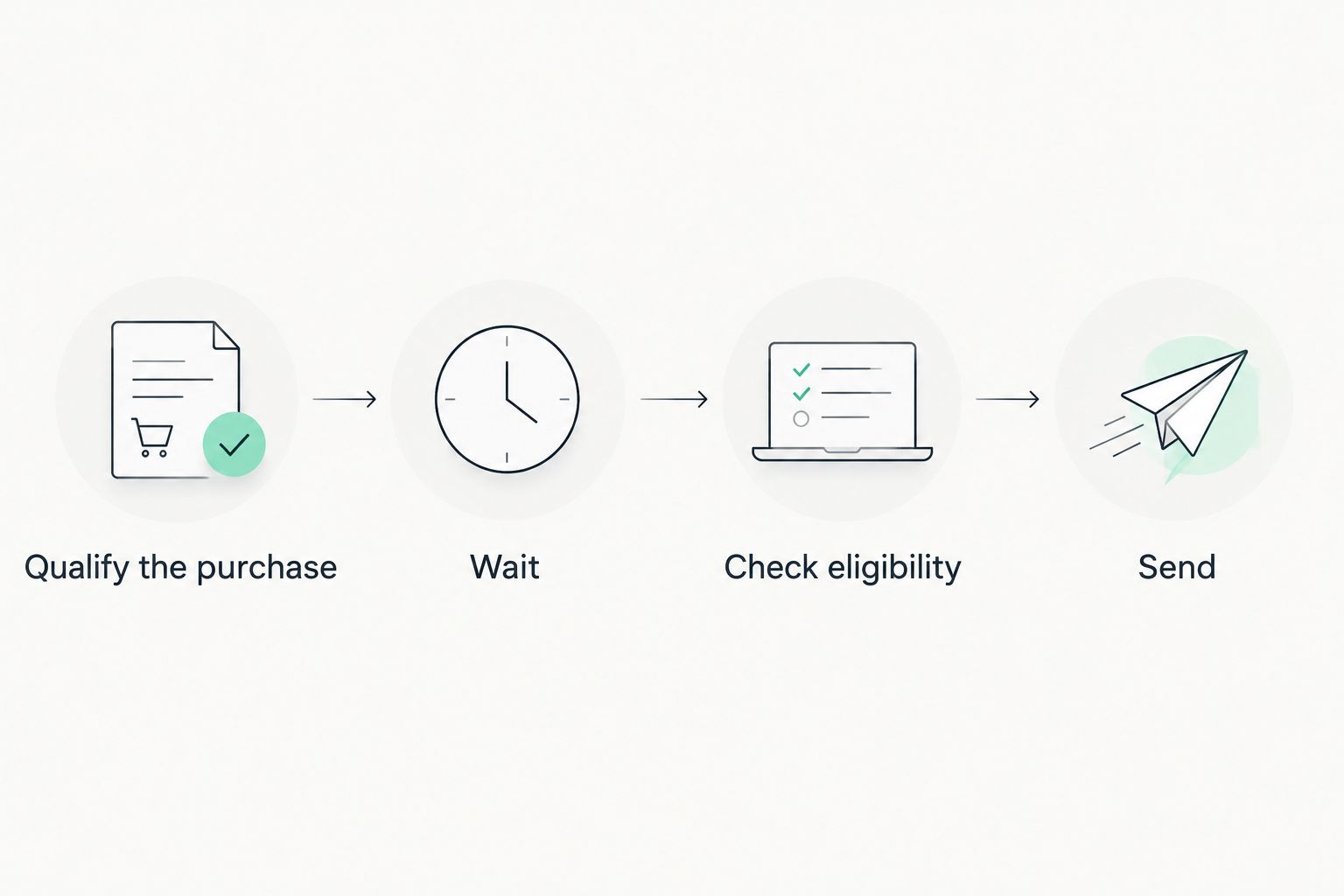
This sequence is the core of the workflow: qualify the purchase, wait, check eligibility again, then send. The second eligibility check prevents yesterday's reorder from becoming today's unnecessary reminder.
Reminder timing
Set the delay from purchasing evidence
- Add Time delay after the trigger. Set the interval using recorded repeat-purchase behavior or a buyer-provided review schedule, not an assumed apparel consumption rate.
- Separate customer groups when their purchasing patterns differ. Recurring resale purchases and annual event merchandise do not justify the same schedule.
- Review Smart Sending for the reminder email. Decide whether recent marketing messages should cause the reminder to be skipped, and include that decision in your testing.
- Keep the reminder in Draft while you validate the timing. Record why you selected the interval so someone can revise it later without guessing.
Expected result: The waiting period has an explicit business reason, and you know whether other recent emails can affect delivery.
There is no universal wholesale reorder interval. A bandana reseller's order history and a school's event calendar answer different questions. Treat missing history as a reason to collect a preferred review date, not as permission to invent a replenishment schedule.
For the 2026 launch, start with a single reminder. A longer sequence adds more opportunities to send an irrelevant message before you have established that the initial timing is useful.
Use a temporary 1-day delay only in a controlled test flow when you need to observe scheduled progression. That is a test configuration, not a recommended customer reorder interval. Keep test timing out of the production flow.
Email content and launch checks
Build and validate the reminder
- Add Email after the delay. Set the sender identity and subject to match your business, not the supplier whose merchandise you purchase.
- Write a direct prompt to review the previous purchase. Ask whether another order is needed; do not claim that the buyer has run out.
- If you personalize with purchase details, select an actual trigger event in Preview & test. Insert fields using the available event data rather than copying an unverified template variable.
- Provide a clear next action: review the relevant merchandise or reply with requirements. Use only destinations your business controls and has verified.
- Test the message and flow logic separately. Send 1 test email to inspect content, then use 2 test orders on an eligible test profile to check the initial trigger and subsequent-purchase exclusion.
- Review recipient activity and skip reasons before changing the customer-facing email to Live. Remove test-only settings first.
Expected result: The email renders correctly, the intended profile qualifies, and a new purchase stops the reminder associated with the older purchase.
A preview confirms presentation, not the entire automation. Check the scheduled recipient and filter behavior as well as the inbox copy. An attractive test email does not prove that the right customer will receive it.
For wholesale apparel reminders, include recognizable ordering context only when it exists in the event. Product category, color, or a previous customization reference can help the buyer identify the purchase; unsupported details create confusion.
Wholesale For Everyone offers custom printing and embroidery on selected products. That does not establish that an earlier design can be reordered automatically. Keep artwork and specification confirmation separate from the email trigger.
Variant: remind purchasing staff when a review date changes
An internal reminder begins with your business's purchasing schedule, not a customer's ecommerce order. Best for: buyers who track supplier orders and want a prompt to review their next purchase.
Keep a purchasing record containing the responsible person, supplier, product reference, last completed order, and next review date. Make an explicit workflow decision about what should happen when that date changes: update the pending task, replace the reminder, or cancel it.
If you use Klaviyo for this variant, have your approved connector or server-side process send a deliberately defined custom event when the review becomes due. Klaviyo does not automatically interpret an arbitrary spreadsheet edit as a purchase or reschedule an existing metric-triggered flow because a cell changed.
Give the custom event a distinct name and keep it separate from customer purchase metrics. Include a stable purchasing-record identifier so your sending process can prevent repeated due events for the same review.
The benefit is a clear purchasing prompt; the limitation is the extra responsibility for scheduling and duplicate prevention. A task or calendar reminder is the simpler choice when the outcome is internal review rather than a marketing email.
Troubleshooting
The purchase exists, but nobody enters the flow
Check the metric's integration source and the profile receiving the event. Then inspect wholesale classification and trigger eligibility. Creating or importing a profile is not a substitute for the selected purchase event.
Buyers receive reminders after reordering
Inspect the purchase-exclusion rule and confirm that it uses since starting this flow. Verify that the later purchase arrived on the same profile and uses the same metric; orders split across identities cannot reliably stop each other's reminders.
Product fields are blank in the email
Preview against a real event with the required fields. Check whether the information sits on the order event or within its item collection. Remove unsupported personalization rather than sending empty product names or unrelated fallback content.
The email is skipped
Read the recorded skip reason before changing settings. Check suppression, email eligibility, profile filters, and Smart Sending. Do not remove protective rules merely to force a test recipient through the flow.
One order starts duplicate reminders
Compare source order identifiers and integration sources. Check whether a native integration and a custom import both send the same purchase. Fix duplicate event ingestion at the source; extending the email delay does not correct duplicate records.
Customize your workflow
Once the basic flow passes testing, refine one decision at a time. Split recurring resale buyers from event organizers, introduce category-specific content where event data supports it, or collect a preferred purchasing review date.
For your 2026 review, judge relevance through actual reminder outcomes and recipient feedback. Keep the distinction between an email interaction, a completed purchase, and an internally approved purchasing task; they are different outcomes.
If your purchasing records live outside your storefront, the Google Sheets tracker to wholesale reorders guide is the next workflow to examine. Establish who owns each record before connecting another system.
FAQ
How do I connect Klaviyo to wholesale reorder reminders?
Connect your order system, verify its purchase metric, and create a metric-triggered flow for eligible wholesale buyers. Add a justified delay and a profile filter that stops the reminder after another purchase.
Does Wholesale For Everyone automatically connect my orders to Klaviyo?
This workflow does not depend on a direct Wholesale For Everyone connection. Use order records from a system you control, and verify the event reaches Klaviyo before configuring a reminder.
Can I use a contact list instead of purchase events?
A contact list alone does not supply purchase timing or order details. Use verified purchase events for purchase-triggered reminders, or define a separate due-date workflow with its own scheduling logic.
How long should I wait before sending a wholesale reorder email?
Use your recorded repeat-purchase behavior or the buyer’s preferred review schedule. Apparel and event merchandise do not have a universal reorder interval, so avoid treating a test delay as a customer recommendation.
How do I stop a reminder when a customer orders again?
Add a profile filter requiring zero purchase events since starting the flow. Confirm that subsequent orders reach the same customer profile through the metric used by the filter.
Can a spreadsheet update reschedule my Klaviyo reminder?
A spreadsheet edit does not automatically reschedule a metric-triggered Klaviyo flow. Configure your scheduling process to update or replace the pending reminder deliberately, or emit a distinct due event when the review date arrives.
Do wholesale customers need email permission checks?
Yes, wholesale classification does not establish email marketing permission. Apply appropriate consent, eligibility, suppression, and unsubscribe handling rather than treating an order record as unrestricted permission to send promotions.
One last thing
The most useful reminder sometimes asks for a date rather than an order. When a buyer says the timing is wrong, capture the preferred review date and use it to improve the next workflow. A customer's stated schedule is a better instruction than an unsupported assumption about merchandise usage.
Related guides
- Connect QuickBooks to wholesale purchase orders
- Connect WooCommerce to wholesale bandana restocking
- Custom embroidered apparel for small businesses